

Quick answer
To convert HEIC to JPG, drop your .HEIC / .HEIF photos into the box, choose JPG (or PNG) and a quality, then download each image or a ZIP. Photos are decoded in your browser and never uploaded; up to 30 images at a time, 25 MB each.
What is HEIC, and why convert it to JPG?
HEIC has been the iPhone's default photo format since iOS 11: files are about half the size of JPG at similar quality, but plenty of places still cannot open them, such as Windows without the HEIF extension, upload portals, photo printers and some desktop chat apps. Converting to JPG gives you a file that opens on any device.
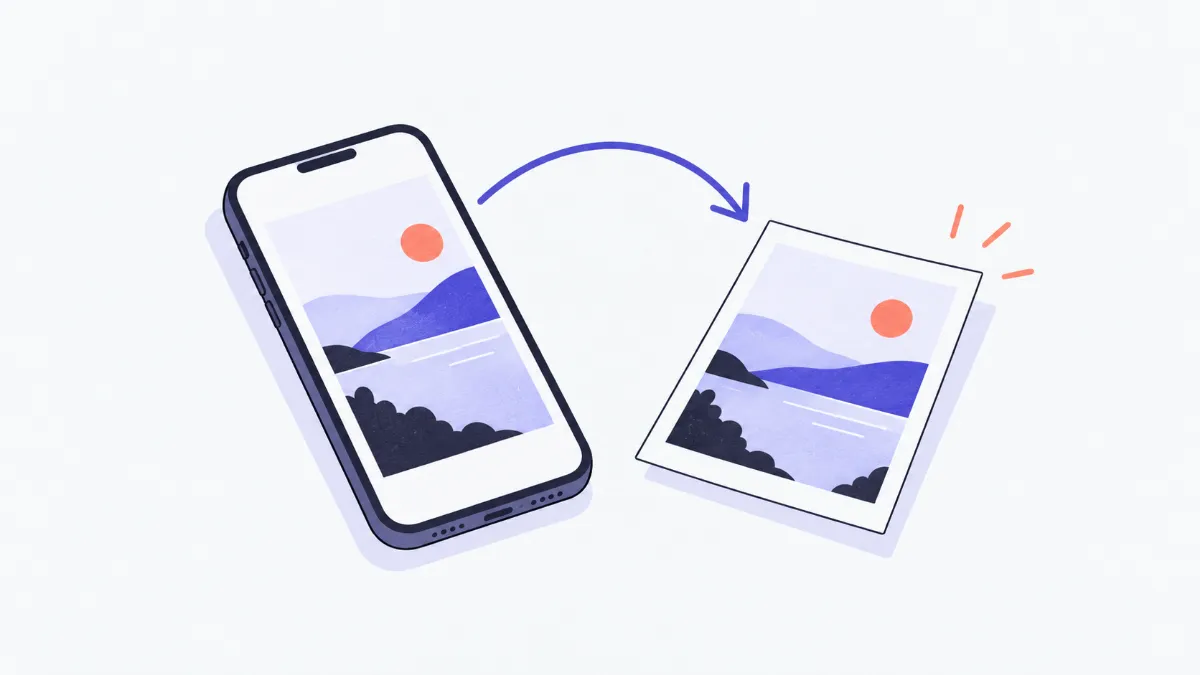
How to convert HEIC to JPG
- 1
Click “Choose files” or drop HEIC / HEIF photos into the box (copy them from your iPhone by cable, AirDrop or iCloud).
- 2
Choose “JPG” (small, opens everywhere) or “PNG” (lossless, larger). For JPG, 90% quality is enough for most uses.
- 3
Wait for the conversion (a 12 MP photo takes a few seconds). Click “View” to check any image.
- 4
Download images one by one with “Download” or all at once with “Download all (.zip)”. “Continue with” passes them to compression, resizing or Image to PDF.
HEIC vs JPG vs PNG
| HEIC | JPG | PNG | |
|---|---|---|---|
| Typical size of a 12 MP photo | 1.5–3 MB | 3–5 MB (90% quality) | 15–25 MB |
| Opens on Windows, Android, the web | Limited | Everywhere | Everywhere |
| Compression | Lossy, very efficient | Lossy | Lossless |
| Best for | Storage on iPhone and iCloud | Sharing, posting, forms, printing | Further editing without losing detail |
Swipe sideways to see the whole table →
Size depends on the picture: detailed scenes (foliage, crowds) are heavier than skies or plain walls.
Stop your iPhone saving HEIC
| iPhone setting | Effect |
|---|---|
| Settings › Camera › Formats › Most Compatible | New photos are saved as JPG (about twice the size) |
| Settings › Photos › Transfer to Mac or PC › Automatic | Photos copied over a cable are converted to JPG; the phone keeps HEIC |
Real-world examples
An upload form that only takes JPG
A document photo from an iPhone is rejected as .HEIC: convert it to JPG at 90%, then click “Continue with › Compress image” if the form has a size limit.
Open iPhone photos on Windows
Copy the DCIM folder from the iPhone, drop the whole batch of HEIC photos in, and download a single ZIP of JPGs.
Send photos for printing
The print shop cannot read HEIC: convert to JPG at 95–100% to keep detail in large prints.
Combine phone shots into a PDF
Convert the HEIC photos to JPG, then click “Continue with › Image to PDF” to get one PDF with every page.
Common problems
- “This HEIC image could not be decoded”.
- The photo may have been damaged while copying, be the video half of a Live Photo (.MOV), or use a rare HEIF variant. Copy the original again, or take a screenshot of it on the iPhone.
- The converted photo lost its date and location.
- Results carry no EXIF data (camera, time, GPS). That is deliberate so photos are safe to share; keep the original HEIC if you need that information.
- Converting many photos is slow.
- Browsers other than Safari decode HEIC with a separate library (about 1.3 MB, downloaded once) and process photos one at a time. Up to 30 photos per batch.
- The JPG is bigger than the HEIC.
- That is normal: HEIC compresses better than JPG. Lower the quality to 80–85% or run the result through Compress image.
- A burst or animated photo gives only one image.
- The HEIC file holds several frames; the tool takes the first one (the main still).
How the conversion works
Safari (iPhone, iPad, Mac) can read HEIC natively, so the tool uses the browser's own decoder there. Chrome, Edge and Firefox cannot read HEIC yet, so the first time a HEIC photo appears the tool loads the heic2any library (built on the open-source libheif) and decodes it on your device, without sending the photo anywhere.
Each photo is decoded losslessly and then encoded to JPG at the quality you chose (or PNG). The pixel dimensions stay the same as the original.
Glossary
- HEIC / HEIF
- An image format using HEVC compression; HEIF is the standard and HEIC the variant Apple uses. File extensions .heic or .heif.
- JPG (JPEG)
- The most widely supported photo format; opens on every device and app.
- Live Photo
- An iPhone photo with a 3-second clip; the still is HEIC and the video is a separate .MOV file.
- EXIF
- Information stored with a photo: camera, time, orientation, GPS position.
Frequently asked questions
Are my photos uploaded?
No. Photos are decoded and converted in your browser.
Does converting HEIC to JPG lose quality?
JPG is lossy, so there is a very small change; at 90% quality it is hard to see. Choose PNG to keep every pixel exactly (much larger files).
Can I convert many photos at once?
Yes, up to 30 per batch, 25 MB each; download them individually or as one ZIP file.
Why does my iPhone save HEIC?
HEIC is about half the size of JPG at similar quality, saving space on the phone and in iCloud.
Is the capture date and location kept?
No. Results carry no EXIF data; keep the originals if you need it.
Does it work on an iPhone?
Yes. Safari reads HEIC natively, so conversion is quick; downloads go to the Files app.
Ratings and comments
Loading…