

Quick answer
To make a QR code, choose a content type (Link / Text, Wi-Fi, Email, Phone, SMS), fill in the details and click “Download PNG” or “Download SVG”. The code is generated in your browser; it is static, so it never expires and does not pass through any redirect server.
What is a QR code?
A QR code is a square of black and white dots that encodes a piece of content, so a phone camera can open a link, join Wi-Fi or draft a message. Codes made here are static: the content lives inside the image, so a printed code keeps working without depending on any service.
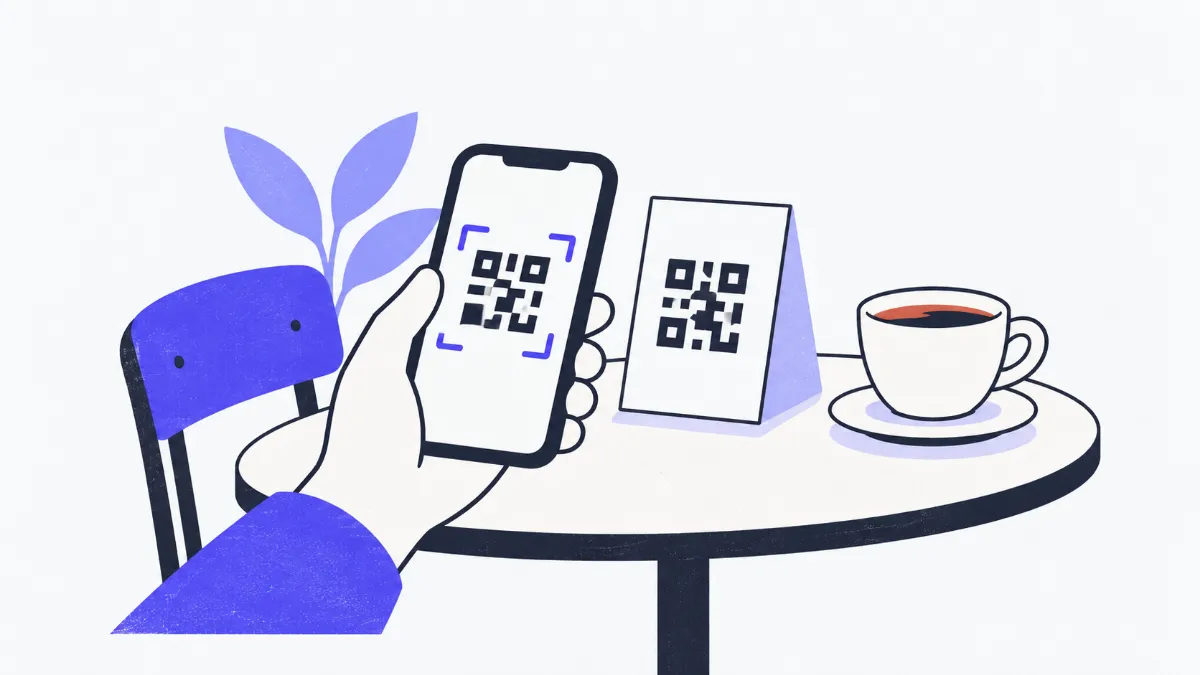
How to create a QR code
- 1
Choose a “Content type”: Link / Text, Wi-Fi, Email, Phone or SMS.
- 2
Enter the content. For links, include “https://” so phones open the page directly; for Wi-Fi, enter the network name, password and security type.
- 3
Under “Customize”, set the PNG size (256–2,048 px), quiet zone, error correction and colors. The preview updates as you type.
- 4
Click “Download PNG” (web, chat), “Download SVG” (print, scales without blur) or “Copy image”.
- 5
Scan it with your own phone before printing in bulk.
Which error correction level?
| Level | Recovers up to | Density | Best for |
|---|---|---|---|
| L | About 7% | Sparsest | On-screen display, long content |
| M (default) | About 15% | Medium | Most uses: business cards, flyers, packaging |
| Q | About 25% | Denser | Outdoor print, surfaces that get scratched |
| H | About 30% | Densest | Harsh conditions, codes that may be partly covered |
Swipe sideways to see the whole table →
Maximum capacity of one QR code
Per ISO/IEC 18004, the largest code (version 40) holds:
| Character type | Level L | Level M | Level Q | Level H |
|---|---|---|---|---|
| Digits only (0–9) | 7,089 | 5,596 | 3,993 | 3,057 |
| Digits, upper-case letters and a few symbols | 4,296 | 3,391 | 2,420 | 1,852 |
| Bytes (any text, UTF-8) | 2,953 | 2,331 | 1,663 | 1,273 |
Swipe sideways to see the whole table →
Accented and non-Latin characters take 2–3 bytes each in UTF-8. Longer content means denser, harder-to-scan codes; use a short link for long URLs.
Minimum print size by scanning distance
| Scanning distance | Minimum code size | Example |
|---|---|---|
| 20–30 cm (8–12 in) | 2–3 cm (about 1 in) | Business cards, product labels |
| 1 m (3 ft) | About 10 cm (4 in) | Table posters, standees |
| 3 m (10 ft) | About 30 cm (12 in) | Banners, signage |
Rule of thumb: code size ≈ distance ÷ 10. Codes holding more content need to be printed larger; always test-scan a real print.
Real-world examples
A Wi-Fi code for a café
Choose Wi-Fi, enter the network name and password with WPA/WPA2/WPA3, download the SVG and print it 5–8 cm wide for each table: guests scan to join without typing the password.
A flyer that links to a sign-up page
Paste the full https:// link, keep error correction at M and send the SVG to the printer. Static codes keep working as long as the page is online.
A business card that dials your number
Choose Phone and enter the number in international format, e.g. +84912345678. Printed at about 2.5 cm, it shows the number ready to call.
A pre-filled feedback email
Choose Email, enter the address and a subject such as “Service feedback”: people scanning it only need to press send.
Common problems and fixes
- Scanning shows plain text and the phone does not open the site.
- The link is missing “https://”. The tool reminds you when you type a bare domain; add the full “https://”.
- “Content is too long to fit in one QR code”.
- Shorten the content, use a short link or lower error correction (H → M → L). The message shows the current and maximum byte count.
- The printed code will not scan.
- Check contrast (dark code on a light background), a quiet zone of at least 2 modules and a print size large enough for the distance.
- A light code on a dark background will not scan.
- Many camera apps only read dark-on-light codes; the tool warns you about this. Switch back to a dark code on a light background.
- The Wi-Fi code scans but does not connect.
- Check the exact network name (case-sensitive), password and security type; for hidden networks tick the hidden network option.
- There is no “Copy image” button.
- The browser cannot copy images to the clipboard yet. Use “Download PNG”.
Glossary
- Static QR code
- The content is stored in the code itself with no server in between; it never expires, but changing the content means making a new code.
- Dynamic QR code
- A code holding a link to a redirect service so the destination can change later; it depends on that service staying online. This tool does not make dynamic codes.
- Quiet zone
- The blank border around a code that helps scanners find its edges; keep at least 2 modules, 4 by default.
- Error correction
- Redundant data that lets a dirty, scratched or partly covered code still be read (L, M, Q, H).
- Module
- The smallest square dot of a QR code; more content means more modules.
Frequently asked questions
Do these QR codes expire?
No. They are static codes with the content stored in the image, so they work indefinitely, as long as the website or Wi-Fi network still exists.
PNG or SVG?
PNG for web pages, chat and slides. SVG for print and design work because it scales to any size without blurring.
Can I change colors or add a logo?
You can change the code and background colors, with a warning when contrast is low. Adding a logo in the middle is not supported yet.
Is my content sent to a server?
No. The code is generated in your browser; Wi-Fi passwords or phone numbers are not sent anywhere.
Can I count how many times it was scanned?
No, because static codes do not pass through any server. To measure visits, add UTM parameters to the link and check your website analytics.
Can it make a vCard (contact card)?
Not yet. Supported types are link / text, Wi-Fi, email, phone and SMS.
Ratings and comments
Loading…