

Quick answer
To reduce an image's file size, drop it into the box, keep the “Balanced” level and download: the image is compressed in your browser and never uploaded. The tool takes JPG, PNG, WebP, GIF, BMP and AVIF, up to 30 images at a time, 25 MB and 50 megapixels each.
What is an online image compressor?
Image compression re-encodes a picture so the file gets lighter while the difference is hard to see. JPG and WebP are saved again at the quality you choose; PNG stays PNG and is reduced to fewer colors, or recompressed losslessly at “High quality”. If the result is not smaller than the original, the original is kept.

How to compress images
- 1
Click “Choose files”, drag images into the box or paste with Ctrl+V. Up to 30 images, 25 MB each.
- 2
Drag the “Compression level” slider: the default is 75% (Balanced); drag left for smaller files (Strong, below 70%) or right for sharper ones (High quality, 85% and up). Images are compressed straight away with the current settings.
- 3
Need it smaller: choose WebP as the output, or set “Limit the longest side” (for example 1,920 px for web images).
- 4
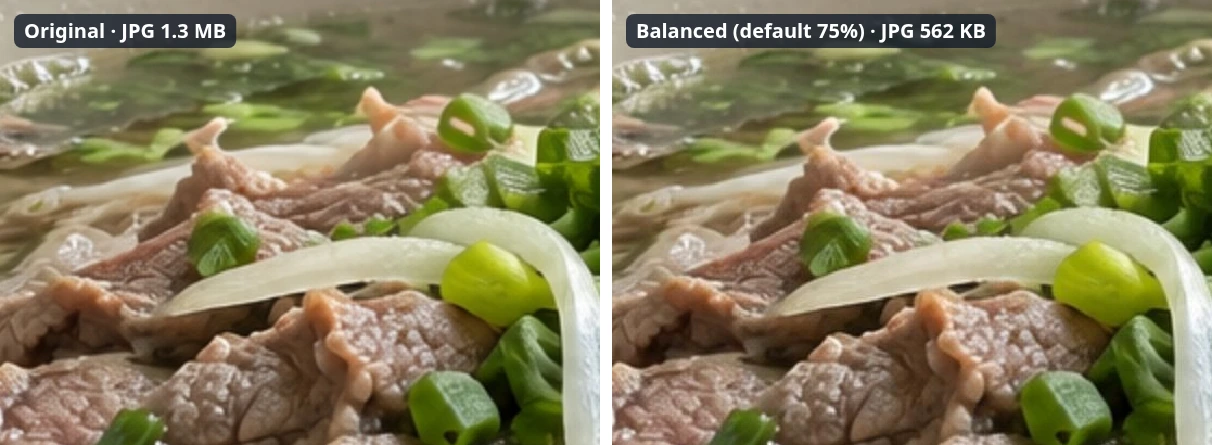
Changed a setting after compressing? Click “Apply new settings”. Click “View” (or the thumbnail) to preview the result, compare before / after with a slider and zoom to 100%.
- 5
Download one image at a time or everything with “Download all (.zip)”. “Continue with” passes the compressed images to another tool.
Real measurements
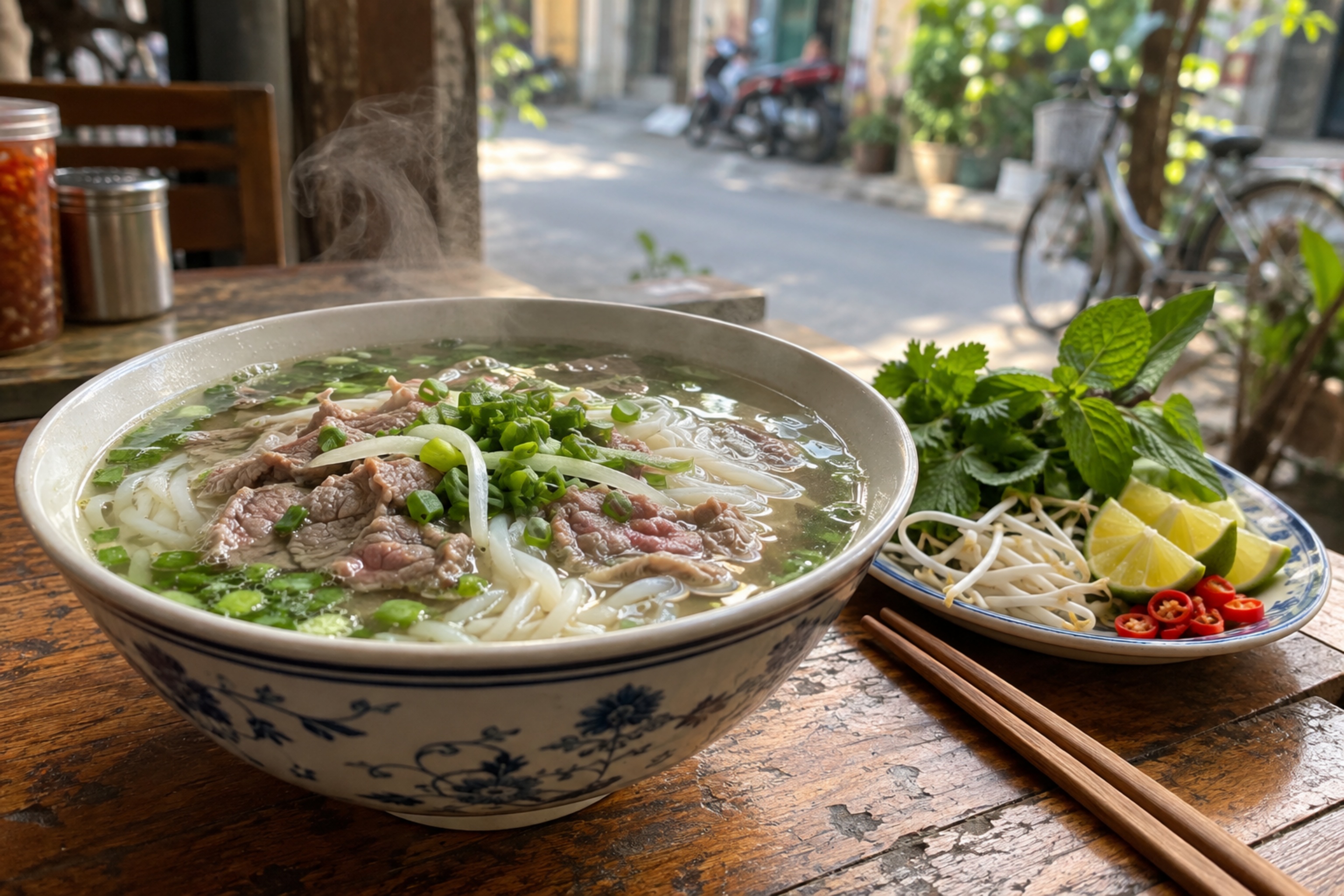
Measured on Oct 21, 2026 with this very tool in Chromium 155. The sample image was created by AI (Codex); download it or try it right now.
Sample: a bowl of phở (AI image, upscaled to 6 MP) · JPG · 3,072 × 2,048 px · 1.3 MB
| Setting | Size | Result | vs. original |
|---|---|---|---|
| Strong (60%) | 428 KB | JPG · 3,072 × 2,048 px | 68% smaller |
| Balanced (default 75%) | 562 KB | JPG · 3,072 × 2,048 px | 58% smaller |
| High quality (88%) | 861 KB | JPG · 3,072 × 2,048 px | 35% smaller |
| Balanced + WebP | 290 KB | WebP · 3,072 × 2,048 px | 78% smaller |
| Balanced + long edge 1,920 px | 288 KB | JPG · 1,920 × 1,280 px | 78% smaller |
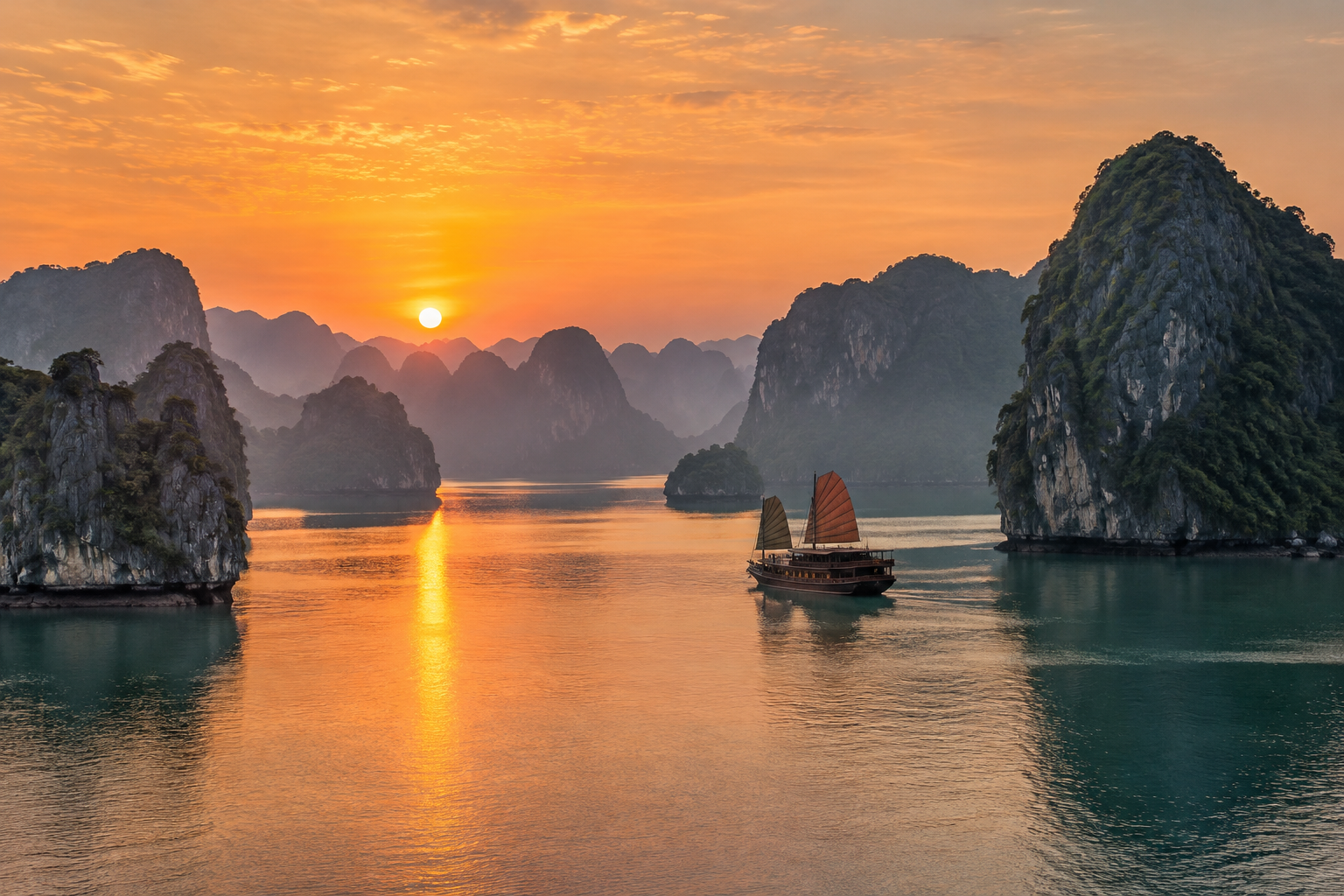
Sample: Ha Long Bay saved as PNG (AI image) · PNG · 1,536 × 1,024 px · 2.41 MB
| Setting | Size | Result | vs. original |
|---|---|---|---|
| Balanced (PNG, 256 colours) | 691 KB | PNG · 1,536 × 1,024 px | 72% smaller |
| Balanced + WebP | 130 KB | WebP · 1,536 × 1,024 px | 95% smaller |
| Balanced + JPG | 187 KB | JPG · 1,536 × 1,024 px | 92% smaller |
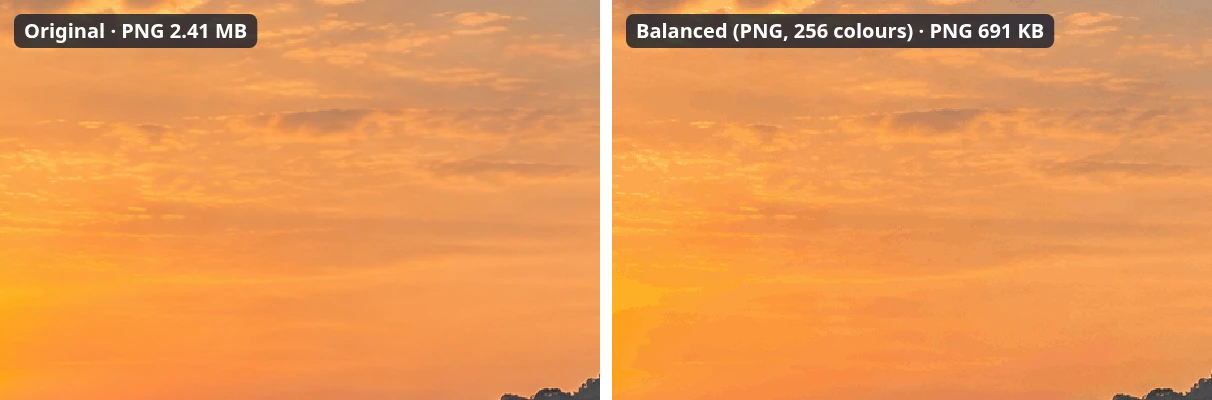
Results depend on the image: detailed photos shrink less than flat graphics.
JPG, PNG or WebP?
| Format | Compression | Transparency | Best for |
|---|---|---|---|
| JPG | Lossy, adjustable quality | No (transparent areas get a background colour) | Photos, product shots, email and chat |
| PNG | Lossless, or fewer colors when compressed | Yes | Screenshots, logos, graphics with text or thin lines |
| WebP | Lossy, adjustable quality | Yes | Website images that must stay light and keep transparency |
Swipe sideways to see the whole table →
Output is always a still image: animated GIFs keep only their first frame.
What each level does
| Level | JPG / WebP | PNG | When to use it |
|---|---|---|---|
| Strong | Below 70% (60% is typical) | At most 128 colors (64 below 50%) | Illustrations, chat images, upload forms with a size cap |
| Balanced | 70–84% (75% by default) | At most 256 colors | Most cases: websites, social media, email |
| High quality | 85–100% (88% is typical) | Lossless recompression | Images where detail matters, or for print |
Swipe sideways to see the whole table →
Actual savings depend on the source image; already-compressed images (from social media) shrink very little.
Real-world examples
Phone photos for email or chat
A 12 MP photo (4,032 × 3,024 px) is often several MB. “Balanced” plus a 1,920 px longest side keeps it sharp on screen and much lighter to send.
An online form that only accepts images under 1 MB
Start with “Balanced”. If it is still too big, drag down to “Strong” (about 60%) or limit the longest side to 1,280 px and click “Apply new settings”; each result row shows the new size.
Product photos for an online store
Choose WebP for faster pages if the platform accepts it; otherwise keep JPG. Transparent PNGs should stay PNG or become WebP so the background is not filled.
Screenshots full of text
Screenshots use few colors, so keeping PNG at “Balanced” (up to 256 colors) usually cuts the size a lot while text stays crisp. Avoid JPG, which blurs letter edges.
Common problems and fixes
- “Already optimized, original kept” and the size does not change.
- The image was compressed before, so re-compressing does not help. Try limiting the longest side (e.g. 1,280 px) or switching to WebP; if nothing changes it is already close to optimal.
- An image is rejected as too large.
- The limit is 25 MB and 50 megapixels per image. Panoramas or very high-resolution camera files need to be scaled down first with desktop software.
- A transparent PNG turns white.
- You chose JPG output, which has no transparency. Keep the format (PNG) or pick WebP.
- HEIC photos from an iPhone will not open.
- Only Safari can read HEIC. Use Safari, or set the iPhone to save JPG: Settings › Camera › Formats › Most Compatible.
- WebP output is unavailable.
- Some Safari versions cannot encode WebP. Use Chrome, Edge or Firefox, or keep the original format.
- An animated GIF becomes a still image.
- The tool works with still images, so animated GIFs keep only their first frame and are saved as PNG.
Glossary
- Lossy compression
- Drops detail the eye barely notices to make files smaller (JPG, WebP). Re-compressing repeatedly degrades the image.
- Lossless compression
- A smaller file that decodes to exactly the same pixels (PNG at “High quality”).
- Color quantization
- Reducing the number of distinct colors in a PNG (e.g. to 256) so it gets lighter; works well for screenshots.
- EXIF metadata
- Information stored with a photo: camera, time, sometimes GPS location. Compressed images no longer carry EXIF.
- Megapixel (MP)
- One million pixels; a 4,032 × 3,024 px photo is about 12 MP.
Frequently asked questions
Are my images uploaded to a server?
No. Compression runs in JavaScript in your own browser; images never leave your device, so it is safe for personal documents.
Does compression remove GPS location?
Yes. Compressed images no longer contain EXIF metadata (camera, time, location). Images are rotated according to EXIF before saving, so they are not flipped sideways.
Does compressing several times make images worse?
For JPG and WebP, yes, because each pass drops more detail. Always compress from the original instead of re-compressing a compressed file.
Why do PNGs shrink less than JPGs?
Photos contain a huge number of colors, so reducing PNG colors is less effective than JPG/WebP encoding. For photos, choose WebP or JPG output.
Is there a usage limit?
No. It is free with no account; each run handles up to 30 images and you can repeat as often as you like.
Does it work on a phone?
Yes. Pick images straight from your photo library; very large images may take longer on slower phones.
Ratings and comments
Loading…