

Quick answer
To change an image format, drop the images in, pick JPG, PNG or WebP under “Convert to” and download; conversion happens in your browser and nothing is uploaded. It reads JPG, PNG, WebP, GIF, BMP and AVIF (HEIC in Safari), up to 30 images at a time, 25 MB each.
What does an image converter do?
Converting an image saves the same picture as a different file type so it fits where you need it: JPG for photos and places that only accept JPG, PNG when every pixel and transparency must be kept, WebP when the file must be light for a website. Each conversion decodes the original and re-encodes it in the target format.
How to convert images
- 1
Click “Choose files”, drag images in or paste them (Ctrl+V). Up to 30 images, 25 MB each.
- 2
Under “Convert to”, choose JPG, PNG or WebP.
- 3
For JPG / WebP, adjust “Quality” (90% by default). For JPG, pick a “Background color” for transparent areas.
- 4
Download images one by one or all at once with “Download all (.zip)”.
Real measurements
Measured on Oct 21, 2026 with this very tool in Chromium 155. The sample image was created by AI (Codex); download it or try it right now.
Sample: Ha Long Bay saved as PNG (AI image) · PNG · 1,536 × 1,024 px · 2.41 MB
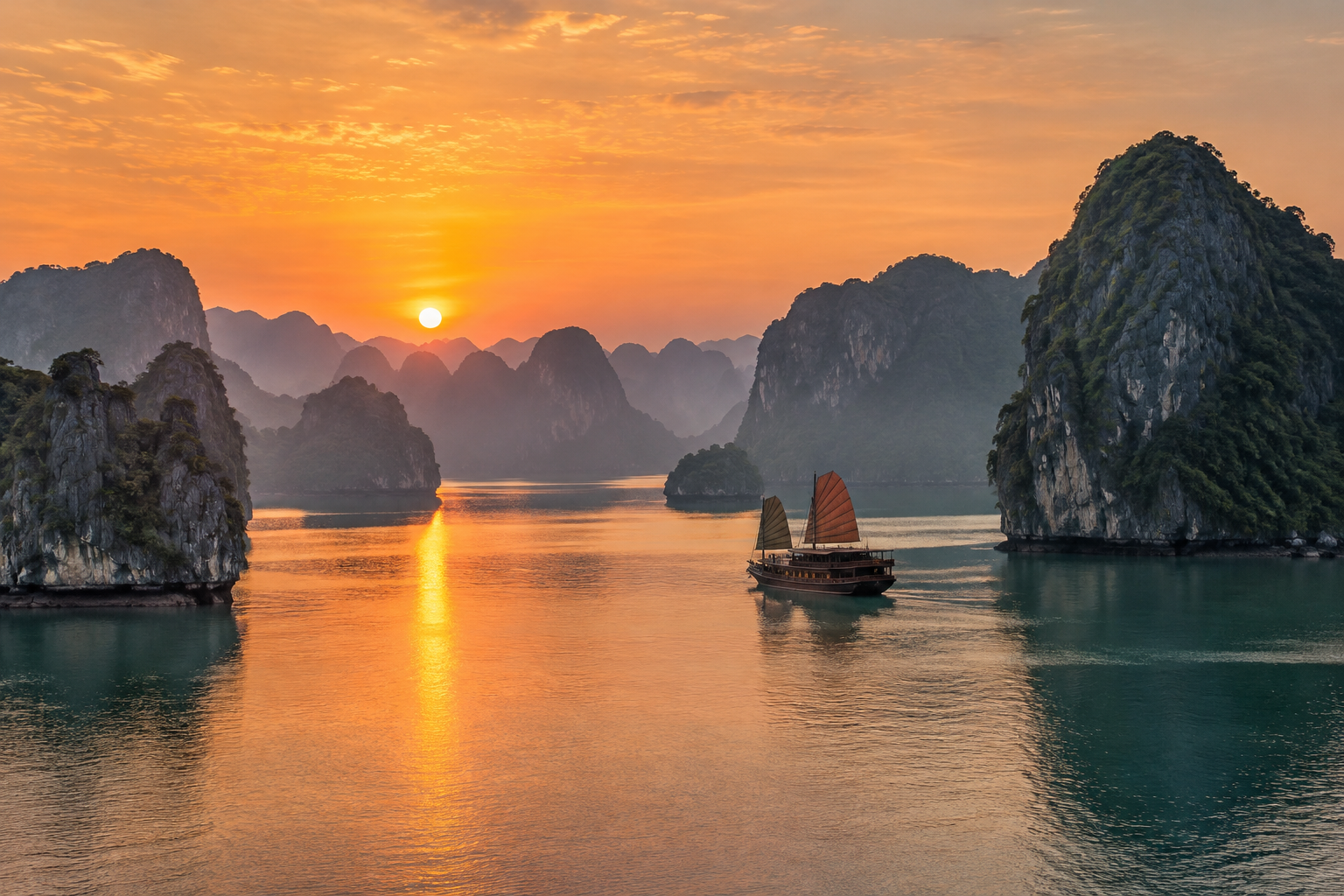
| Setting | Size | Result | vs. original |
|---|---|---|---|
| PNG → WebP | 300 KB | WebP · 1,536 × 1,024 px | 88% smaller |
| PNG → JPG | 339 KB | JPG · 1,536 × 1,024 px | 86% smaller |
Sample: a bowl of phở (AI image, upscaled to 6 MP) · JPG · 3,072 × 2,048 px · 1.3 MB
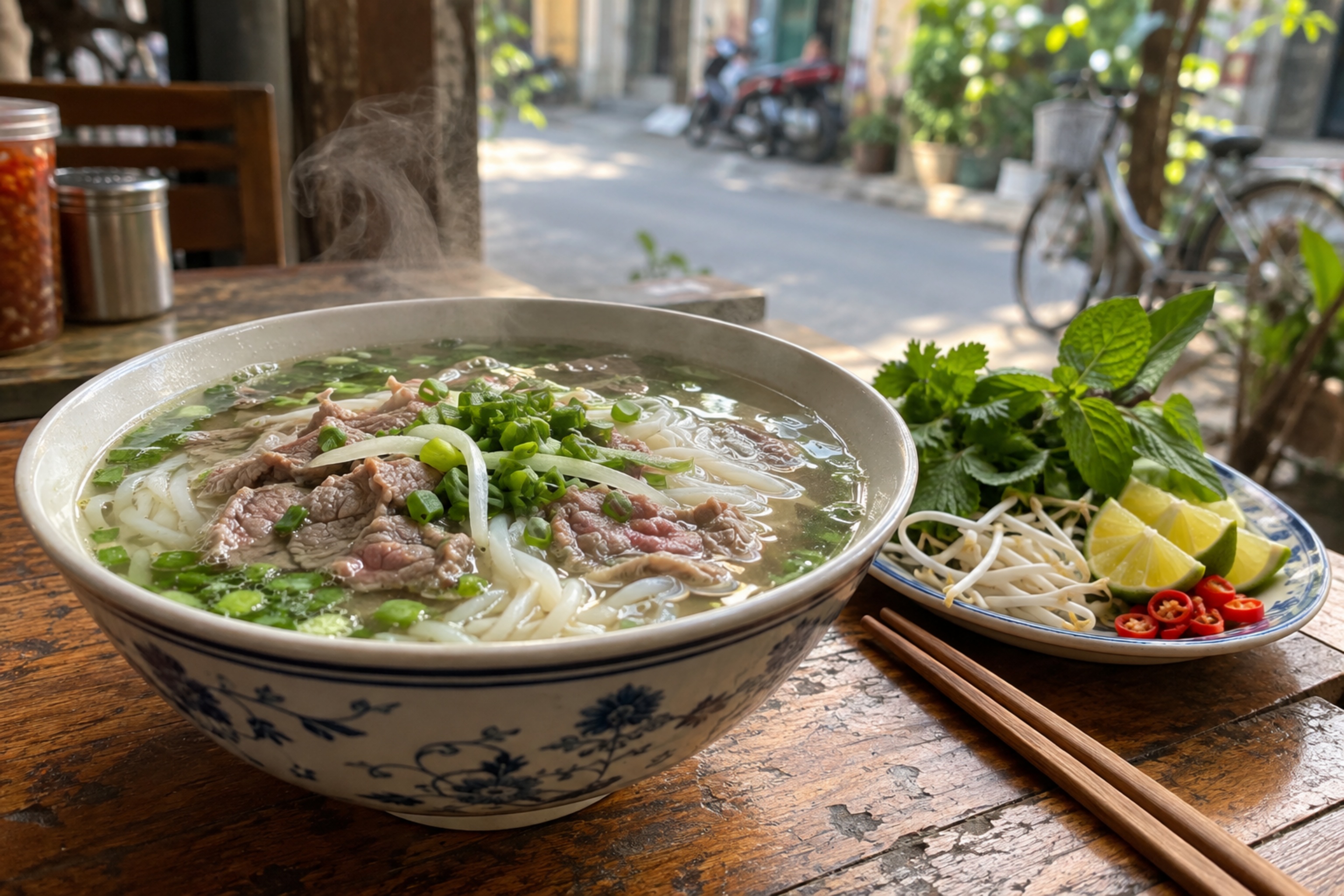
| Setting | Size | Result | vs. original |
|---|---|---|---|
| JPG → WebP | 577 KB | WebP · 3,072 × 2,048 px | 57% smaller |
| JPG → PNG | 9.24 MB | PNG · 3,072 × 2,048 px | 610% larger |
Results depend on the image: detailed photos shrink less than flat graphics.
What is kept when converting
| Convert to | Transparency | Animation (GIF) | Quality | Notes |
|---|---|---|---|---|
| JPG | No, filled with your background color | First frame only | Lossy, 10–100% | Opens everywhere; text and thin lines can blur |
| PNG | Yes | First frame only | Lossless | Usually larger than JPG for photos |
| WebP | Yes | First frame only | Lossy, 10–100% | Light, ideal for websites; some Safari versions cannot export it |
Swipe sideways to see the whole table →
EXIF data (camera, location) is not kept in the output; images are rotated upright before saving.
Supported input formats
| Format | Readable in | Notes |
|---|---|---|
| JPG, PNG, WebP | All modern browsers | Full support |
| GIF, BMP | All modern browsers | Animated GIFs use the first frame |
| AVIF | Recent Chrome, Edge, Firefox, Safari | Depends on the browser's decoder |
| HEIC / HEIF (iPhone) | Safari only | Other browsers show an error with guidance |
| SVG | No | Vector image; open it in a browser and export or screenshot as PNG |
Real-world examples
A form that only accepts JPG
Screenshots or downloaded PNG/WebP files rejected? Convert to JPG at 85–90% quality with a white background and upload again.
WebP images that will not open in older software
Some office apps and older printers cannot read WebP. Convert to JPG (photos) or PNG (graphics, text) so they open everywhere.
A transparent logo for a website
Keep transparency by converting to PNG or WebP. If you must use JPG, choose a background color that matches the page so no white box shows.
Lighter product images
Converting product PNGs to WebP at 80–90% quality is usually much lighter with little visible difference; use the Image Compressor afterwards if you need even smaller files.
Common problems and fixes
- A PNG converted to JPG gets a white background.
- JPG has no transparency, so transparent areas are filled with the “Background color”. Choose PNG or WebP to keep transparency.
- Converting JPG to PNG makes the file much bigger.
- That is expected: PNG is lossless, so photos produce large files. PNG does not make a photo sharper; use it only when you need it.
- “The file is damaged or not a real image”.
- The download was incomplete, or only the extension was changed. Get the original image again and retry.
- WebP cannot be selected.
- Some Safari versions cannot encode WebP. Use Chrome, Edge or Firefox.
- HEIC photos from an iPhone cannot be read.
- Open the page in Safari, or set the iPhone to Settings › Camera › Formats › Most Compatible so new photos are saved as JPG.
Glossary
- Image format
- How a file stores pixel data (JPG, PNG, WebP…); it decides file size, transparency and where it can be opened.
- Alpha channel
- Data describing how transparent each pixel is; PNG and WebP have it, JPG does not.
- Quality
- How much detail JPG/WebP keeps when encoding; lower means lighter files but more visible blur and blocks.
- Re-encoding
- Decoding the original and saving it in the new format; with JPG/WebP each re-encode can lose a little detail.
Frequently asked questions
Does converting reduce image quality?
Converting to PNG loses nothing further. JPG or WebP lose a little depending on “Quality”; 90% and above is practically indistinguishable to the eye.
Are images uploaded anywhere?
No. Images are decoded and re-encoded inside your browser and are never sent anywhere.
What if an image is already in the target format?
It is saved again with the current settings (for example JPG at 90%), so its size may change. The tool shows a note when this happens.
Are animated GIFs kept?
No. Output is always a still image using the first frame of an animated GIF.
How many images can I convert at once?
Up to 30 images per run, each up to 25 MB and 50 megapixels. Split larger batches into several runs.
Ratings and comments
Loading…