

Quick answer
To turn images into a PDF, pick the images, put them in order, choose a page size (A4 with small margins by default), then click “Convert to PDF” and “Download PDF”. Each image becomes one page and JPGs are embedded as-is, without recompression. Up to 30 images, 25 MB each, processed in your browser.
What does converting images to PDF do?
Converting images to PDF places each image on its own page so it is easier to send, print or submit. Images are centred and scaled to fit, keeping their aspect ratio; phone photos are rotated upright using EXIF. The tool does not run OCR: pages are images, so the text cannot be selected.
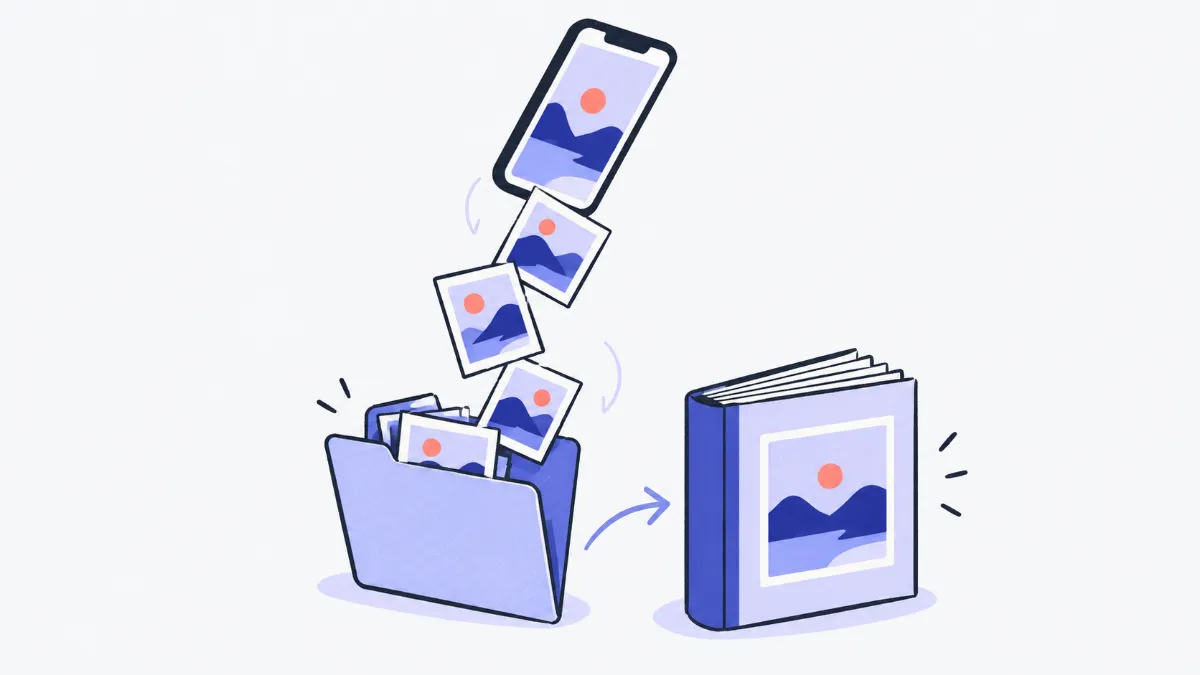
How to convert images to PDF
- 1
Click “Choose files”, drag images in or paste them (Ctrl+V). Up to 30 images, 25 MB each.
- 2
Arrange the page order with the drag handle or arrow buttons; remove any image you do not need.
- 3
Choose “Page size” (Fit to image, A4, Letter), “Orientation” (Auto, Portrait, Landscape) and “Margin” (None, Small, Large).
- 4
Name the file, click “Convert to PDF”, then “Download PDF”. “Continue with › Merge PDF” lets you add other PDFs.
Page sizes and margins
| Option | Size | Notes |
|---|---|---|
| A4 | 210 × 297 mm (595 × 842 pt) | The most common paper size worldwide; default |
| Letter | 8.5 × 11 in (612 × 792 pt) | Common in the US |
| Fit to image | Follows the image, 1 px = 0.75 pt (96 dpi) | Each page matches its image, no extra white space |
| Small margin | About 7 mm per side | Default; keeps images off the edge when printing |
| Large margin | About 14 mm per side | Good for binding or stapling |
| No margin | 0 mm | The image reaches the page edge (keeping its ratio) |
“Auto” orientation puts landscape images on landscape pages and portrait images on portrait pages.
How images go into the PDF
| Image type | Handling | Quality |
|---|---|---|
| JPG | Embedded as-is | 100% unchanged |
| Phone JPG with EXIF rotation | Rotated upright, then saved as JPG at 92% | Near original |
| PNG | Embedded as-is, transparency kept | Unchanged |
| WebP, GIF, BMP… | Converted to PNG (if transparent) or JPG at 92% | Near original; animated GIFs use the first frame |
Real-world examples
Phone photos of paperwork for an online form
Photograph each page and both sides of an ID card, choose A4 with small margins and Auto orientation: one tidy PDF in the right order, ready to upload.
Sending receipts to an accountant
Combine 20 receipt photos into one PDF instead of sending them one by one in a chat: easier to view, print and archive.
A portfolio or photo booklet
Choose “Fit to image” and no margin so every page matches its photo with no white border; JPGs keep their full quality.
The PDF is too heavy for email
12 MP photos make a heavy PDF. Compress or resize them first (1,600–2,000 px on the long side is plenty to read), then use “Continue with › Image to PDF”.
Common problems and fixes
- Text in the PDF cannot be selected.
- Pages are images and the tool does not run OCR. Use dedicated OCR software if you need selectable text.
- The PDF is too large.
- The PDF is roughly the size of all images combined. Compress or resize the images before converting.
- HEIC photos from an iPhone cannot be read.
- Only Safari reads HEIC. Use Safari, or set the iPhone to save JPG (Settings › Camera › Formats › Most Compatible).
- An image is marked “Error” in the list.
- The file is damaged, incomplete or not an image. Remove failed images (the “Remove … failed images” button); the remaining pages are renumbered from 1.
- A small image becomes a tiny PDF page.
- In “Fit to image” mode each page takes the image's size. Choose A4 or Letter to place it on standard paper.
Glossary
- pt (point)
- The unit used in PDF files: 1 pt = 1/72 inch ≈ 0.353 mm.
- EXIF orientation
- A tag in photos telling viewers how to rotate them; the tool uses it so pages are not sideways.
- OCR
- Recognising text in images so it can be selected, searched and copied; this tool does not do OCR.
- Embedded as-is
- The JPG data goes into the PDF unchanged, without decoding and recompressing, so no quality is lost.
Frequently asked questions
Are my images uploaded?
No. The PDF is created inside your browser, so photos of documents never leave your device.
Does converting make images blurry?
Not for JPG and PNG, which are embedded as-is. Other formats are saved at high quality (JPG 92% or PNG).
Can one page hold several images?
Not yet. Each image is one page. To put several images on one page, combine them in a photo editor first.
Will portrait photos end up sideways?
No. Images are rotated upright using EXIF, and with “Auto” orientation portrait images get portrait pages.
How many images can I add?
30 images per run, 25 MB each. For more, create several PDFs and combine them with “Merge PDF”.
Ratings and comments
Loading…