

Quick answer
To resize an image, drop it in, choose “Pixels” and type a width (the height follows the aspect ratio), or choose “Percentage”, then download. It runs in your browser, handles up to 30 images at a time and outputs up to 16,384 px per side.
What does resizing an image mean?
Resizing changes the number of pixels across and down. Making an image smaller makes it lighter and fit its display area; enlarging adds no detail, so the image tends to blur. The tool scales down in several steps with a high-quality filter to avoid jagged edges.
How to resize images
- 1
Click “Choose files”, drag images in or paste them (Ctrl+V). Up to 30 images, 25 MB each.
- 2
Pick a quick size (1920 px, 1280 px, 800 px, 1080×1080 square, 50%) or enter your own under “Pixels” / “Percentage”.
- 3
If you untick “Keep aspect ratio” and enter both width and height, choose how to handle a different ratio: Crop to fill, Add padding or Stretch.
- 4
Turn on “Don't enlarge images smaller than the target” to avoid blurry enlargements; pick an “Output format” if needed.
- 5
Download images one by one or everything with “Download all (.zip)”.
Real measurements
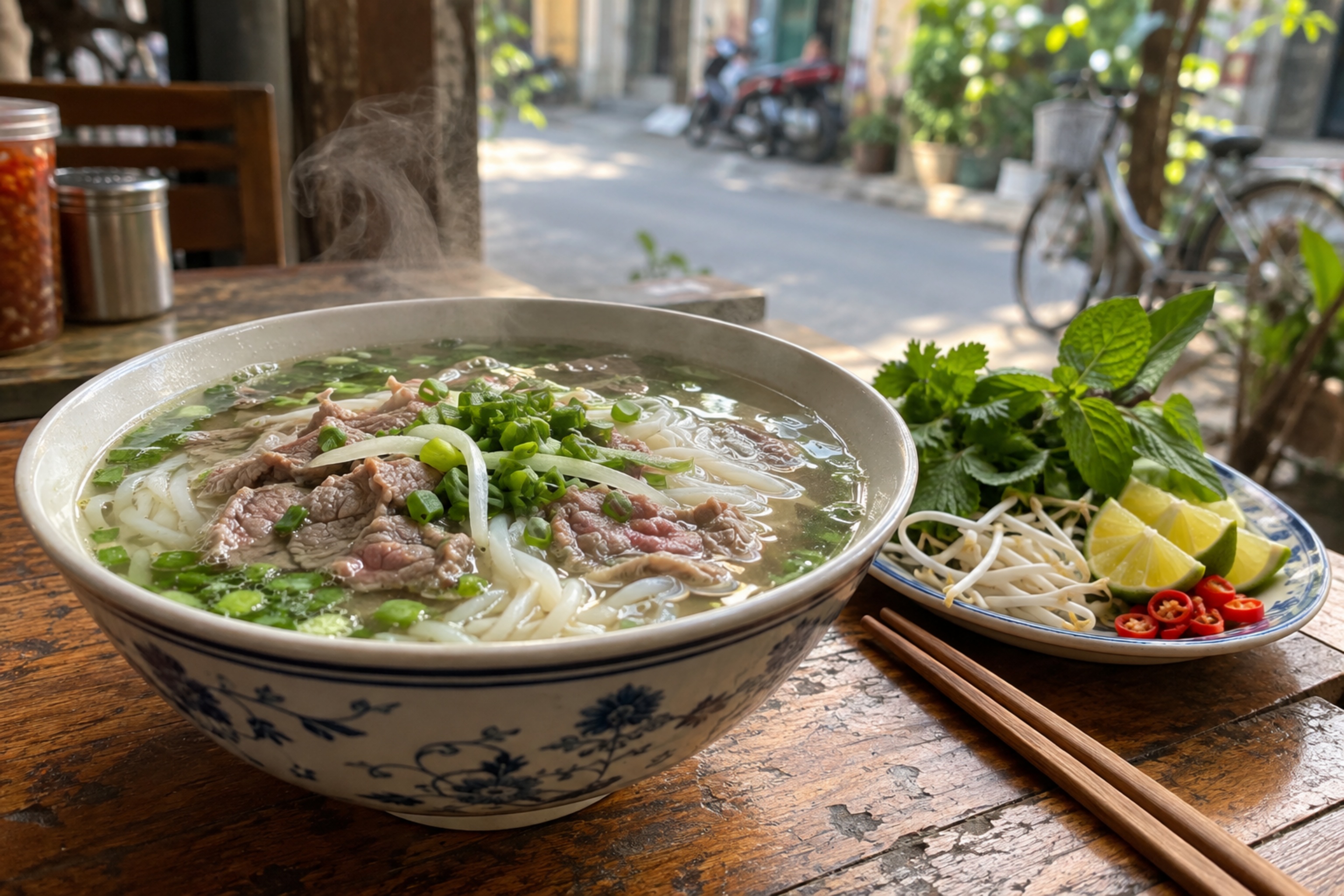
Measured on Oct 21, 2026 with this very tool in Chromium 155. The sample image was created by AI (Codex); download it or try it right now.
Sample: a bowl of phở (AI image, upscaled to 6 MP) · JPG · 3,072 × 2,048 px · 1.3 MB
| Setting | Size | Result | vs. original |
|---|---|---|---|
| 1,920 px wide, keep ratio | 469 KB | JPG · 1,920 × 1,280 px | 65% smaller |
| 50% | 346 KB | JPG · 1,536 × 1,024 px | 74% smaller |
| 1080 × 1080, crop to fill | 244 KB | JPG · 1,080 × 1,080 px | 82% smaller |
Results depend on the image: detailed photos shrink less than flat graphics.
Common sizes
| Purpose | Suggested size | How to set it |
|---|---|---|
| Images in articles and websites | 1,280–1,920 px wide | Pixels, enter the width, keep ratio |
| Square social posts | 1,080 × 1,080 px | The “1080×1080 square” button (crop to fit) |
| Portrait social posts | 1,080 × 1,350 px | Untick keep ratio, enter 1080 × 1350, Crop to fill |
| Video thumbnails | 1,280 × 720 px (16:9) | Untick keep ratio, enter 1280 × 720, Crop to fill or Add padding |
| Email and chat | Longest side 1,280 px or 50% | The “1280 px” or “50%” button |
Reference values only; platforms change their guidelines, so check the latest rules where you post.
Three ways to handle a different aspect ratio
| Option | Result | Good for |
|---|---|---|
| Crop to fill | Fills the frame and trims the overflow (keeps the centre) | Avatars, square posts, covers |
| Add padding | Keeps the whole image and fills the gaps with a colour | Product shots, images that must not be cropped |
| Stretch | Forces the exact size and may distort | Only when the ratios are nearly the same |
Real-world examples
Images for a blog or online store
A 4,000 px wide photo is more than a web page needs. Click “1920 px” (or 1280 px) for a lighter image that still looks sharp on large screens.
A square social media post
Click “1080×1080 square”: the centre of the image is cropped to a square. If the sides must stay, choose “Add padding” and pick a colour.
An ID or profile photo at a required size
The form asks for 600 × 800 px? Untick “Keep aspect ratio”, enter 600 and 800, choose “Crop to fill” and check the size in the result row.
Shrinking a whole batch
Select up to 30 images and click “50%”: each image is halved in both directions (the file size usually drops to about a quarter), then download the ZIP.
Common problems and fixes
- An enlarged image looks blurry or grainy.
- Upscaling cannot add detail. Start from a larger original, or turn on “Don't enlarge images smaller than the target”.
- The image looks distorted.
- “Stretch” is selected with a different ratio. Choose “Crop to fill” or “Add padding”, or keep the original aspect ratio.
- It asks for a valid size.
- Each side must be 1–16,384 px and the scale 1–1,000%. Enter a whole number without “px”.
- Images in the same batch come out at different sizes.
- With the ratio kept, the other side is calculated per image. For one exact frame, untick keep ratio, enter both sides and choose Crop to fill or Add padding.
- An animated GIF ends up with one frame.
- Output is a still image, so only the first frame of an animated GIF is kept.
Pixels versus DPI
Pixels are the actual dots stored in the file and decide how sharp the image looks on screen. DPI (dots per inch) is only a hint for print size; changing DPI does not change the pixel count.
To print a 4 × 6 inch photo at 300 DPI you need about 1,200 × 1,800 px (inches × 300). For the web, only pixels matter.
Glossary
- Pixel (px)
- The smallest dot of a digital image; a 1,920 × 1,080 px image is 1,920 dots wide.
- Aspect ratio
- Width to height, e.g. 16:9, 4:3, 1:1. Keep it to avoid distortion.
- DPI
- Dots per inch for printing; it does not change the pixel count or on-screen sharpness.
- Interpolation
- How new pixel colours are computed when resizing; multi-step downscaling keeps edges smooth.
Frequently asked questions
Does resizing make the file smaller?
Yes when shrinking: fewer pixels means a smaller file. For even smaller files, send the result to the Image Compressor with “Continue with”.
Are my images uploaded?
No. Images are processed in your browser and never sent anywhere.
Does the format change?
By default the format is kept (GIF, BMP and AVIF are saved as PNG). You can choose JPG, PNG or WebP under “Output format”.
I only know the height I need?
Choose “Pixels”, leave the width empty and enter the height; with the ratio kept, the width is calculated automatically.
What is the maximum size?
Input images up to 25 MB and 50 megapixels; output up to 16,384 px per side.
Ratings and comments
Loading…