

Quick answer
To crop an image, drop it into the box, pick a ratio (free, 1:1, 4:3, 16:9, or a 3×4 / 4×6 ID photo), drag the frame over the part you want to keep and click “Crop image”. Cropping happens in your browser, nothing is uploaded; images up to 25 MB and 50 megapixels are supported.
What does cropping an image do?
Cropping keeps a rectangle of a photo and throws the rest away, so you can cut distractions, centre the subject or switch to the exact shape a site asks for. Unlike resizing, cropping does not shrink the picture: every pixel inside the frame keeps its original sharpness.
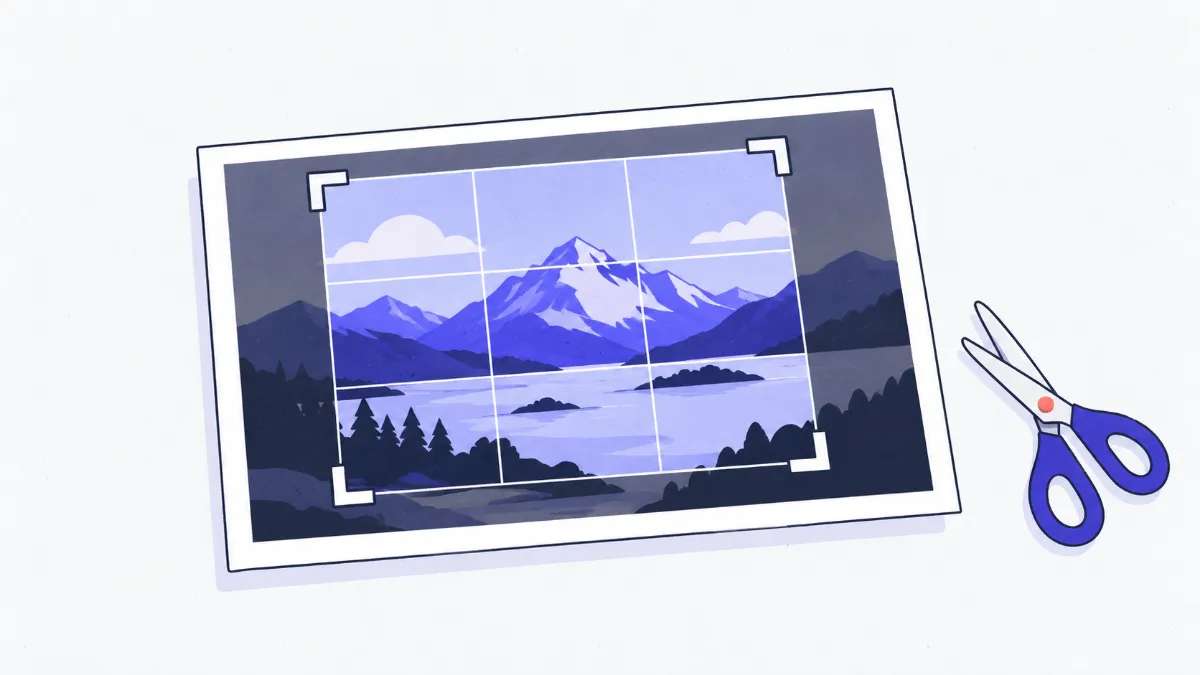
How to crop an image
- 1
Click “Choose files”, drag and drop, or paste (Ctrl+V) a JPG, PNG, WebP, GIF, BMP or AVIF image.
- 2
Pick an aspect ratio: “Free” to drag any shape, or 1:1, 4:3, 16:9, 9:16 and the 3×4 / 4×6 ID sizes to lock the frame's proportions.
- 3
Drag the frame to move it and the eight round handles to resize it. For exact numbers, type pixel values into Left, Top, Width and Height.
- 4
If the photo is sideways or upside down, use the 90° rotate buttons first.
- 5
Choose an output format if you like, click “Crop image”, check the result (click it to view at 100%) and click “Download”.
Which ratio to use where
| Ratio | Good for | Example sizes |
|---|---|---|
| 1:1 (square) | Profile pictures, marketplace product photos, grid posts | 1080×1080, 800×800 |
| 4:3 | Phone photos in their original frame, older slide decks | 1600×1200 |
| 3:4 | Portrait shots, 3×4 ID photos | 1200×1600 |
| 16:9 | Video thumbnails, article images, desktop wallpapers | 1920×1080, 1280×720 |
| 9:16 | Stories, Reels, vertical video | 1080×1920 |
| ID 3×4 | Student, staff and membership cards | 354×472 px (prints 3×4 cm at 300 DPI) |
| ID 4×6 | Application forms that ask for a 4×6 photo | 472×709 px (prints 4×6 cm at 300 DPI) |
Many authorities have their own ID-photo rules (background, head size, clothing). This tool only gets the ratio and pixel size right, so check the requirements where you are submitting.
Cropping versus resizing
| Crop | Resize | |
|---|---|---|
| What is kept | Only the area inside the frame | The whole picture |
| Sharpness of what is kept | Every pixel unchanged | Shrinking removes pixels |
| Changes the shape | Yes, without distortion | Only by stretching (distorting) or padding |
| Use it to | Remove clutter, get a 1:1 or 16:9 frame | Cut pixel count so images load faster |
Real-world examples
Square product photo for a marketplace
A 4000×3000 landscape shot: choose 1:1, centre the product and crop to 3000×3000. To make it lighter, click “Continue with › Resize” and bring it down to 1080×1080.
A 3×4 ID photo from a phone shot
Take a portrait against a plain light wall, choose “ID 3×4”, frame the head and shoulders, and keep the export at 354×472 px. Printed at 3×4 cm it comes out at 300 DPI.
Remove the status bar from a screenshot
Choose “Free”, drag the top edge below the clock and battery and the bottom edge above the navigation bar. Export as PNG so text stays crisp.
A 16:9 cover image for a blog post
From a tall landscape photo, choose 16:9 and move the frame onto the horizon. Typing 1920 into Width tells you straight away whether the crop is big enough for Full HD.
Common problems
- An iPhone photo (HEIC) will not open.
- Browsers other than Safari cannot read HEIC yet. Convert it with “HEIC to JPG” first, then click “Continue with › Crop image”.
- The photo appears sideways.
- The tool already applies the camera's orientation flag (EXIF). If it is still sideways, use the 90° rotate buttons and then adjust the frame.
- The frame will not cover the whole picture.
- A fixed ratio is selected, so the frame stops when it touches an edge. Choose “Free” to drag any shape.
- The cropped image looks soft when enlarged.
- The crop is very small (say 300×300 px), so enlarging it shows the pixels. Watch the “Selection … px” line and keep the crop big enough for where it is going.
- A transparent PNG gets a white background.
- You exported as JPG, which has no transparency. Choose “Keep format”, PNG or WebP instead.
- “Image too large”.
- The limits are 25 MB and 50 megapixels per image so the browser does not run out of memory. Shrink it with the Resize tool first.
Image quality after cropping
The area you keep is not scaled up or down (unless you export at an exact ID-photo size), but the image is encoded again. JPG and WebP use 92% quality by default, which is visually almost identical; move the Quality slider to 100% if you need every detail. PNG is saved losslessly.
EXIF data (camera model, time, GPS position) is not copied to the result. That makes the file safer to share, although photo libraries will no longer know the original capture date.
Glossary
- Aspect ratio
- The width-to-height ratio of an image, such as 16:9. Two images with the same ratio can have different pixel sizes.
- Pixel
- The smallest dot of colour in a digital image; a 1920×1080 image is 1920 dots wide and 1080 dots tall.
- DPI
- Dots per inch when printed. A 354 px image printed 3 cm wide comes out at about 300 DPI, which looks sharp.
- EXIF
- Information stored with a photo: camera, time, orientation, GPS location.
- Rule of thirds
- A grid that splits the frame into 3×3; placing the subject where lines cross usually gives a balanced composition.
Frequently asked questions
Is my photo uploaded to a server?
No. The image is read and cropped in your browser, so it is fine to use with personal documents.
Does cropping reduce quality?
The area you keep keeps all its pixels. JPG and WebP are saved again at 92% quality (adjustable up to 100%); PNG is lossless.
How do I make a 3×4 or 4×6 ID photo?
Choose “ID 3×4” or “ID 4×6”, frame the face, and keep the exact-size export on: you get 354×472 px or 472×709 px, which print at the right size at 300 DPI.
Can I crop several images at once?
This tool crops one image at a time because each needs its own framing. If you only need many images at the same size, use Resize with the crop-to-fill option.
Can I rotate before cropping?
Yes, use the 90° left / right buttons. To rotate by any angle or mirror an image, use the Rotate tool.
Does it work on a phone?
Yes. Drag the frame with your finger; the round handles are larger on touch screens, and you can type pixel values if dragging precisely is fiddly.
Ratings and comments
Loading…