

Quick answer
To make a favicon, choose a logo image (PNG, JPG, WebP, SVG) or type 1–2 letters or an emoji, pick square, rounded or circle and a background, click “Create favicon set” and download the ZIP. You get favicon.ico (16, 32, 48 px), a 180 px apple-touch-icon.png, 192 and 512 px icons, a site.webmanifest and the HTML tags for your <head>.
What is a favicon?
A favicon is the small icon shown in browser tabs, bookmarks, history, search results and on a phone's home screen when someone adds your site. Each of those places wants a different size or format; this tool builds the full set from one image or a couple of letters, right in your browser.
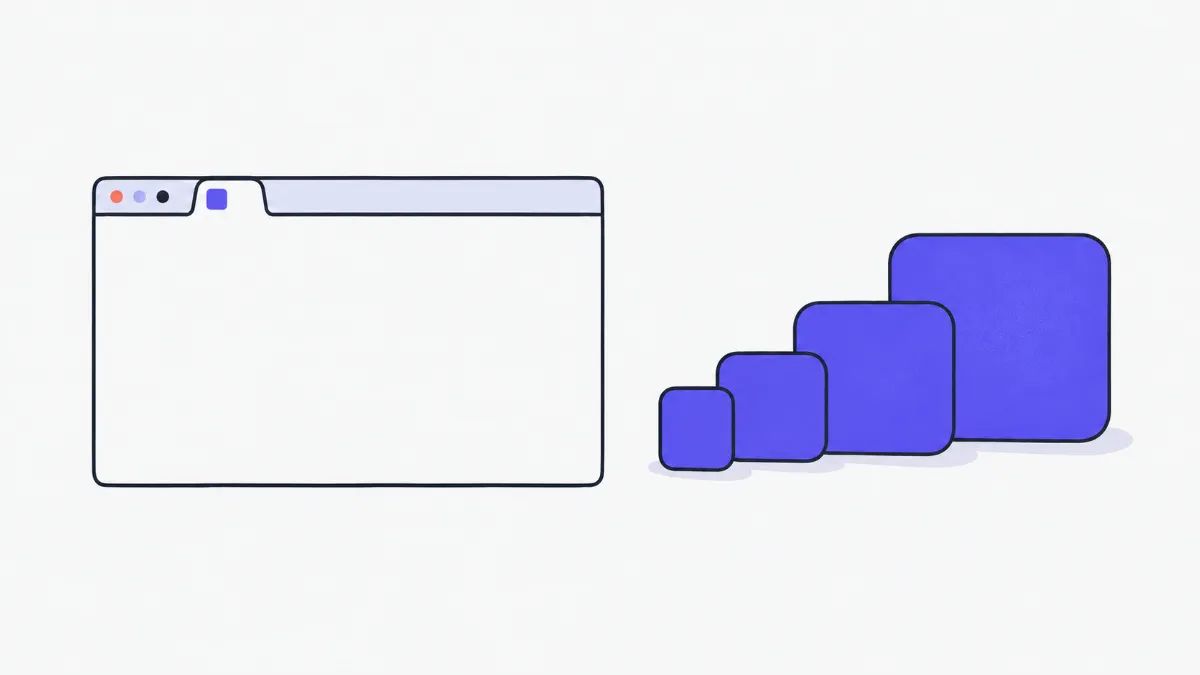
How to create a favicon
- 1
Choose “Image / logo” and drop in an image (square, transparent, 512 px or larger works best), or choose “Text / emoji” and type up to 2 characters.
- 2
Pick a shape (square, rounded, circle), a background colour or transparency, image placement (fit / fill) and padding; for text, choose its colour, size and weight.
- 3
Check the preview on light and dark tab bars and at each size. Enter your site name and theme colour for the manifest.
- 4
Click “Create favicon set”, download the ZIP, copy every file to your site's root folder, and paste the code into <head>.
Files in the favicon set
| File | Size | Where it is used |
|---|---|---|
| favicon.ico | 16, 32 and 48 px in one file | Browser tabs and bookmarks; browsers look for /favicon.ico even when it is not declared |
| favicon.svg | Vector (when made from text or an SVG logo) | Preferred by browsers that support SVG icons; sharp at any size |
| apple-touch-icon.png | 180 × 180 px, with background | Icon when the site is added to an iPhone or iPad home screen |
| icon-192.png | 192 × 192 px | Web app icon on Android (listed in the manifest) |
| icon-512.png | 512 × 512 px | Splash screen and install prompts (listed in the manifest) |
| site.webmanifest | JSON file | Site name, theme colour and icon list for web apps |
The HTML tags
| Tag | Purpose |
|---|---|
| <link rel="icon" href="/favicon.ico" sizes="48x48"> | Main favicon for every browser |
| <link rel="icon" href="/favicon.svg" type="image/svg+xml"> | Vector version (only when the set includes favicon.svg) |
| <link rel="apple-touch-icon" href="/apple-touch-icon.png"> | iOS home-screen icon |
| <link rel="manifest" href="/site.webmanifest"> | Web app declaration |
| <meta name="theme-color" content="…"> | Address bar colour in some mobile browsers |
Real-world examples
A company site with a logo
Drop in an SVG or 512 px PNG logo, choose “Fit”, 10% padding, transparent background. For a wide logo, use just the symbol without the wordmark so it still reads at 16 px.
A personal blog with no logo
Choose “Text / emoji”, type your initial, use your brand colour as background, rounded shape, bold. You get a tidy favicon plus a crisp SVG.
A quick event page
Type an emoji such as 🎉 with a transparent background. In the SVG version the emoji is drawn with the visitor's own system font.
Common problems
- I uploaded the files but the tab still shows the old icon.
- Browsers cache favicons aggressively. Check in a private window or with a hard reload (Ctrl + F5).
- The favicon is an unreadable blur at 16 px.
- Use a simple symbol with little detail, drop the wordmark, reduce padding and choose “Fill”.
- The iPhone icon has a black background.
- iOS does not show transparency for apple-touch-icon. The tool always fills this file (with your background colour, or white if you chose transparent).
- My site lives in a subfolder, not the root.
- Edit the paths in the HTML and in site.webmanifest to match, for example “/blog/favicon.ico”.
Why favicon.ico still matters
The ICO format holds several image sizes in one file, and browsers request /favicon.ico from the site root even if the page never mentions it. The tool stores the 16, 32 and 48 px sizes as PNG images inside the ICO, which every current browser supports and which keeps transparency.
The 192 and 512 px icons in the manifest are the two sizes Android and Chrome use when someone installs your site as an app. Everything is drawn in your browser; no file is uploaded.
Glossary
- Favicon
- The small icon that represents a website in tabs, bookmarks and browser history.
- ICO
- The Windows icon format, which stores several image sizes in one file.
- apple-touch-icon
- The icon iOS uses when a site is added to the home screen.
- Web app manifest
- A JSON file describing the name, colours and icons used to install a site as an app.
Frequently asked questions
Is my image uploaded?
No. It is read and redrawn at each size in your browser.
What size should my image be?
Square, 512 × 512 px or larger, or an SVG. Smaller images work, but the 512 px icon will look soft.
Can I make a favicon from text?
Yes. Choose “Text / emoji” and type up to 2 characters; the set then includes a favicon.svg that is sharp at every size.
Where do the files go?
In your site's root folder (next to the home page). Then paste the code into the <head> of every page, or of your shared template.
Do I need this for WordPress?
WordPress has a Site Icon setting in the Customizer; uploading icon-512.png there is enough, and WordPress generates the sizes.
Can the favicon be transparent?
Yes, except apple-touch-icon, which always needs a background because iOS shows transparency as black.
Ratings and comments
Loading…