

Quick answer
To convert a PDF to images, choose the PDF, pick JPG or PNG and a resolution (72, 150 or 300 DPI), enter the pages you want if not all of them, then click “Convert to images” and download each image or a ZIP. Pages are rendered in your browser and nothing is uploaded; files up to 100 MB are supported.
What does converting a PDF to images do?
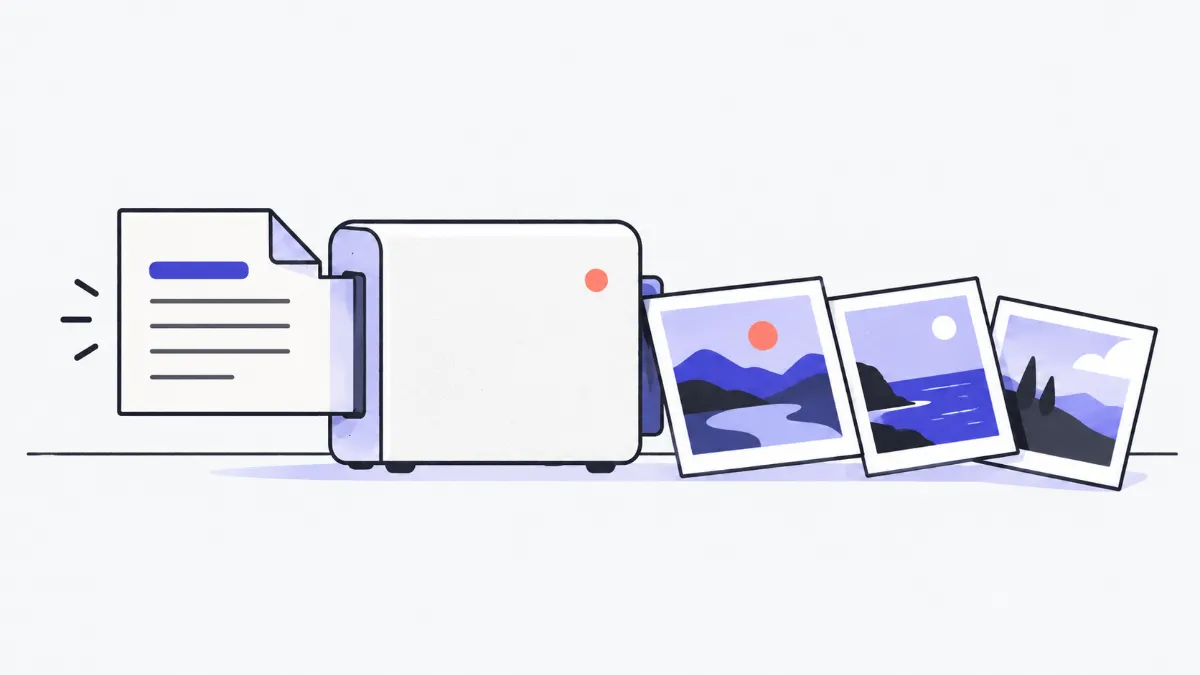
Converting a PDF to images renders each page as a picture, ready for social media, slides, apps that only accept photos, or quick viewing on a phone. The image is a snapshot of the page: it looks identical, but the text can no longer be selected or searched as it can in the PDF.
How to convert a PDF to images
- 1
Click “Choose files” or drop a PDF into the box. Page thumbnails appear so you can check the content.
- 2
Pick a format: JPG (small, good for photos and scans) or PNG (pixel-perfect, good for text-heavy pages and drawings).
- 3
Pick a resolution: 72 DPI for a quick look, 150 DPI for the web and chat apps, 300 DPI for printing or very small text.
- 4
To take only some pages, type them into “Pages to convert”, for example “1-3, 5”. Leave it empty for all pages.
- 5
Click “Convert to images”. Click any image to view it at 100%, then download it or use “Download all (.zip)”.
DPI and image size for an A4 page
An A4 page is 210 × 297 mm. Pixels = inches × DPI.
| DPI | Image size of an A4 page | Typical JPG size | Good for |
|---|---|---|---|
| 72 | 595×842 px | About 100–300 KB | Quick viewing, previews |
| 150 | 1240×1754 px | About 300 KB – 1 MB | Websites, WhatsApp, Facebook, slides |
| 300 | 2480×3508 px | About 1–3 MB | Printing, tiny text, technical drawings |
Swipe sideways to see the whole table →
File size depends on content: a page of text on white is far lighter than a page full of photos. PNG is often 3–10 times larger than JPG for pages with photos.
JPG or PNG?
| JPG | PNG | |
|---|---|---|
| Compression | Lossy, adjustable quality | Lossless |
| Text and line art | May show faint halos around letters | Pixel-sharp |
| Photos and scans | Small and good-looking | Very large |
| Pages per run | 300 | 300 (72 DPI), 150 (150 DPI), 50 (300 DPI) |
Real-world examples
Post a menu on Facebook
A 4-page menu designed as a PDF: choose JPG at 150 DPI, download the ZIP and post the four images as an album.
Send one invoice page in a chat app
Type “2” into Pages to convert and choose JPG at 150 DPI: you get one image of about 1240×1754 px that reads well on a phone.
Put a diagram in a slide deck
For a page with a dense diagram, choose PNG at 300 DPI so it stays sharp when projected.
A cover image for a document
Convert just page 1 at 150 DPI, then click “Continue with › Crop image” to cut a 16:9 thumbnail.
Common problems
- “This PDF needs a password”.
- PDFs with an open password cannot be rendered. Open it in a PDF reader, enter the password, choose Print › Save as PDF and use the new copy. PDFs that only restrict printing or editing convert normally.
- “Too many pages” for these settings.
- High-resolution PNG is very heavy, so each run is capped. Pick fewer pages, convert in several runs, or use JPG / a lower DPI.
- A notice says the page was “reduced to … DPI”.
- Large pages (A0, A1 drawings) at 300 DPI exceed 40 megapixels per image, so the resolution is lowered to keep the browser from running out of memory.
- Text in the image looks blurry.
- Choose 300 DPI, or PNG instead of JPG. At 72 DPI small text is hard to read.
- Fonts look different from the original.
- The PDF does not embed its fonts, so the browser substitutes others. Export the PDF again with fonts embedded.
When to keep the PDF instead
Images lose selectable text, links and the multi-page structure. If the recipient accepts PDF (email, upload portals), the PDF is usually cleaner and clearer. To send only part of a document, use “Split PDF”, which keeps full quality.
Pages are rendered with pdf.js, Mozilla's open-source PDF engine (the same one Firefox uses), running entirely in your browser. Thumbnails and images get a white background, even when the PDF page is transparent.
Glossary
- DPI (dots per inch)
- Pixels per inch (2.54 cm) of the page. An A4 page is 8.27 inches wide, so at 150 DPI it is about 1240 pixels wide.
- Rasterising
- Turning the PDF's vector content (text, lines) into a fixed grid of pixels.
- Lossy compression (JPG)
- Drops hard-to-see detail to make the file smaller; low quality causes halos around text.
- Embedded fonts
- Fonts stored inside the PDF so it looks the same on every device.
Frequently asked questions
Is my document uploaded?
No. PDF pages are rendered to images in your browser.
Which DPI should I choose?
150 DPI for most uses (web, chat apps); 300 DPI for printing or very small text; 72 DPI for a quick look.
Can I convert all pages at once?
Yes, up to 300 pages per run with JPG. PNG at 300 DPI is limited to 50 pages because each image is very large.
Will the text in the images be selectable?
No. Images are pictures of the pages. Keep the PDF if you need selectable text, or use OCR software.
Can I turn the images back into a PDF?
Yes, with the “Image to PDF” tool, or click “Continue with › Image to PDF” after converting.
Does it work on a phone?
Yes. Long files or 300 DPI can be slower on phones, so convert fewer pages per run.
Ratings and comments
Loading…