

Quick answer
To split a PDF, choose the file, pick how to split it (by page ranges, every page, every N pages, or by clicking pages on the thumbnails), click “Split PDF” and download each file or a ZIP. The file is processed in your browser and never uploaded; files up to 100 MB are supported.
What does splitting a PDF do?
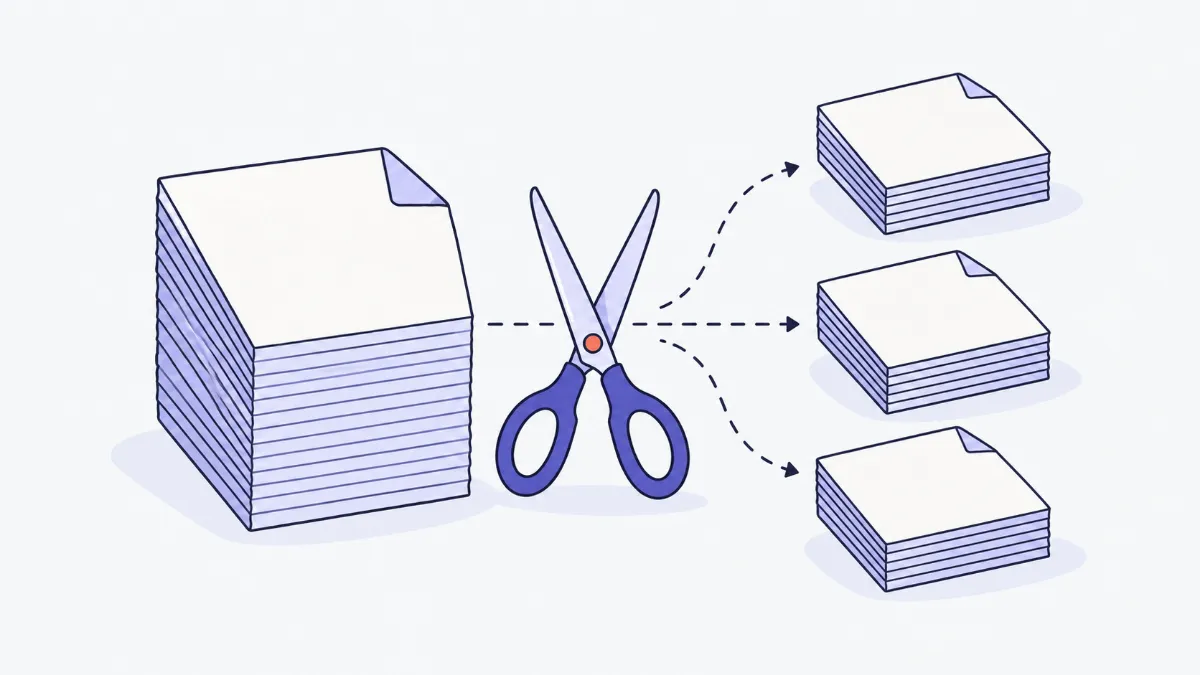
Splitting a PDF copies some of its pages into new PDF files, so you can send sections separately, drop pages you do not need, or break a long scan into separate records. Pages are copied as they are: text stays selectable, images keep their sharpness, and page size and orientation do not change.
How to split a PDF
- 1
Click “Choose files” or drop a PDF into the box. A thumbnail of every page appears so you can see what is where.
- 2
Choose a method: “Ranges” (each range becomes a file), “Every page” (one file per page), “Every N pages”, or “Pick pages” (click thumbnails; the selected pages become one file).
- 3
For “Ranges”, type something like “1-3, 4-6, 7-”: commas separate files and “7-” means from page 7 to the end. The “File 1, File 2…” badges on the thumbnails show which page goes where.
- 4
Click “Split PDF”, use “View” to open any part, then “Download” or “Download all (.zip)”.
The four ways to split
For a 10-page file:
| Method | You enter / pick | Result |
|---|---|---|
| Ranges | 1-3, 4-6, 7- | 3 files: pages 1–3, 4–6, 7–10 |
| Ranges | 1 10, 2-9 | 2 files: pages 1 and 10; pages 2–9 |
| Every page | (nothing to type) | 10 files, one page each |
| Every N pages | N = 4 | 3 files: 1–4, 5–8, 9–10 |
| Pick pages | Click pages 2, 5, 9 | 1 file with pages 2, 5 and 9 in page order |
Up to 500 files per split. Files are named after their pages, for example “contract-pages-1-3.pdf”.
What is kept
| Element | After splitting |
|---|---|
| Text, images, fonts, page size and orientation | Kept as is |
| Annotations and links on the page | Usually kept, depending on the source |
| Bookmarks and navigation outline | Not kept |
| Fillable forms, digital signatures | Only the visible appearance; signatures no longer validate |
| Password-protected or permission-locked PDFs | Cannot be split until unlocked |
Real-world examples
Send a contract's appendix separately
A 24-page contract whose appendix starts on page 19: choose “Ranges” and enter “1-18, 19-” to get the main contract and the appendix as two files.
Separate a batch scan
The scanner produced one 30-page file for 10 people, 3 pages each: choose “Every N pages”, N = 3, and download a ZIP of 10 files.
Just the pages that need signing
Choose “Pick pages”, click page 1 and the pages with signature boxes on the thumbnails, and split them into one file for the other party.
Too big to email
A 40 MB document exceeds the attachment limit: split it into 2–3 parts by chapter and send them one after another.
Common problems
- “Password or editing restrictions”.
- Open the file in a PDF reader (enter the password if there is one), choose Print › Save as PDF to make an unlocked copy, and split that copy.
- The page-range box shows an error.
- Check the page count shown under the file name, avoid reversed ranges like “5-2”, and list each page only once per file.
- Each part is almost as big as the original.
- The pages share large fonts or background images, and each new file has to carry those shared resources. That is how PDF works, not a bug.
- Thumbnails appear slowly or look incomplete.
- Long files render thumbnails as you scroll. Thumbnails are only a preview; the pages in the split files are always the originals.
- “View” does not open the file.
- Your browser blocked the new tab: allow pop-ups for this site, or download the file and open it.
Does splitting reduce quality?
No. The tool copies the page objects (text, vector graphics, embedded images) into the new file without turning pages into pictures or compressing them again. You can still search, select and copy text exactly as in the original.
If you need a picture of each page (for social media or slides), use “PDF to JPG / PNG”. To put parts back together in a different order, use “Merge PDF”.
Glossary
- Page range
- A way to write consecutive pages: “3-7” is pages 3 to 7, “8-” is page 8 to the end, “-3” is the start to page 3.
- Split by ranges
- Each comma-separated range becomes its own file.
- Extract pages
- Take any pages you like into one new file and leave the rest out.
- Permission-locked PDF
- A file with an owner password that forbids copying or editing pages; it must be unlocked before splitting.
Frequently asked questions
Is my document uploaded?
No. The file is read and split in your browser, so it is fine for contracts and personal paperwork.
Does splitting reduce quality?
No. Pages are copied intact, text stays selectable and images keep their sharpness.
What is the size limit?
100 MB per file, and up to 500 output files per split.
Can I split several PDFs at once?
One file at a time, so you can choose pages precisely. Afterwards, “Continue with › Merge PDF” combines the parts with other files.
Can I delete pages from a PDF?
Yes: choose “Pick pages”, click “Select all”, deselect the pages you want to remove, and split into a new file.
Does it work on a phone?
Yes. Tap thumbnails to select pages; very large files may need a computer because phone memory is limited.
Ratings and comments
Loading…