

Quick answer
To organize a PDF, choose the file, drag the thumbnails or use their arrow buttons to reorder, select pages and use “Rotate left / Rotate right”, “Duplicate”, “Delete” or “Insert blank page”, then click “Save PDF” and download. The file is processed in your browser and never uploaded; files up to 100 MB are supported.
What does organizing PDF pages mean?
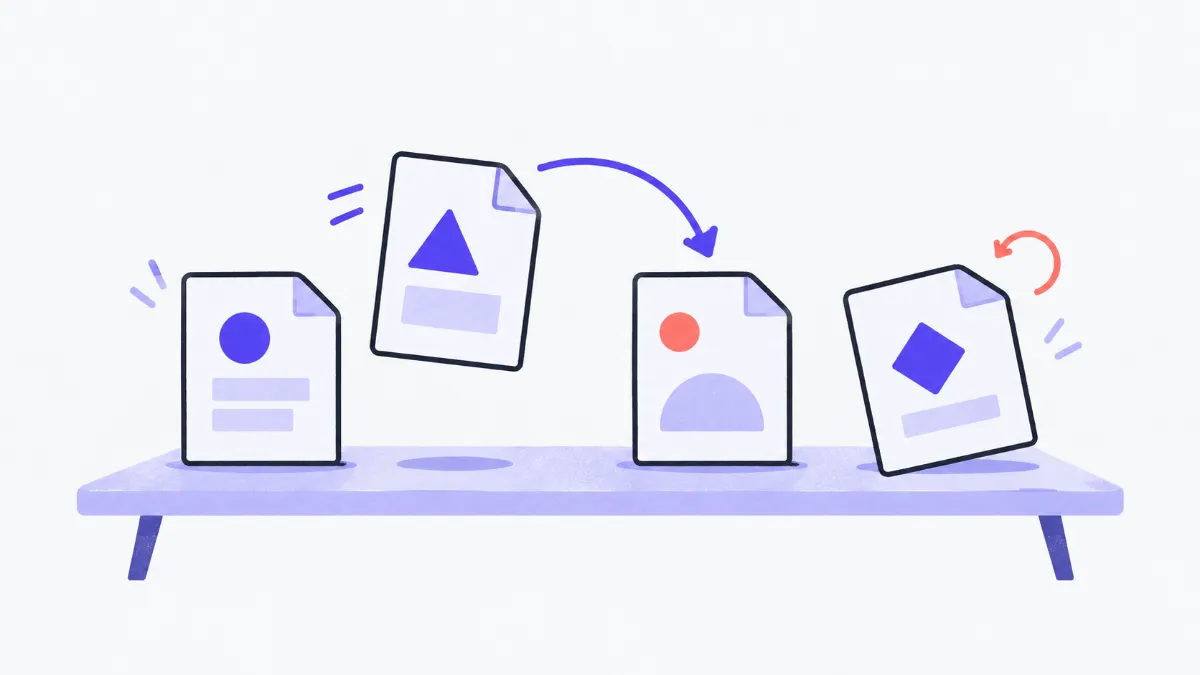
Organizing a PDF changes the structure of a document without touching its content: move an appendix to the front, fix scanned pages that are upside down, drop blank pages, duplicate a page that needs signing twice, or add a blank page so double-sided printing lines up. Pages are copied as they are, so text stays selectable and images stay sharp.
How to rearrange PDF pages
- 1
Click “Choose files” or drop a PDF into the box. Thumbnails of every page appear in their current order.
- 2
To reorder on a computer, drag the handle under a thumbnail to its new spot; on a phone or with the keyboard, use the left / right arrow buttons to move a page earlier or later.
- 3
Click one or more pages to select them, then use “Rotate left”, “Rotate right”, “Duplicate”, “Delete” or “Insert blank page” (added after the last selected page). The rotate button under each page turns just that page 90°.
- 4
Click “Save PDF”, use “Preview” to check it, then “Download”. To start over, click “Reset to original”.
What each action does
| Action | Effect | Note |
|---|---|---|
| Drag / arrows | Moves one page | A label like “3 · was page 5” means position 3 holds the original page 5 |
| Rotate left / right | Turns the selected pages 90° | Adds to the page's existing rotation; content is not redrawn |
| Duplicate | Adds a copy right after each selected page | Copies share fonts and images with the original, so the file does not double |
| Delete | Removes the selected pages | At least one page must remain |
| Insert blank page | Adds an empty page after the last selected page | Same size as the page before it; at the end if nothing is selected |
What is kept when you save
| Element | After organizing |
|---|---|
| Text, images, fonts, page size | Kept as is |
| Annotations and links on the page | Usually kept, depending on the source |
| Bookmarks and navigation outline | Not kept |
| Fillable forms, digital signatures | Only the visible appearance; signatures no longer validate |
| Password-protected or permission-locked PDFs | Cannot be opened until unlocked |
Real-world examples
A scan with a few upside-down pages
The scanner fed pages 4 and 7 upside down: select both, click “Rotate right” twice (180°) and save.
Signed cover page goes first
The signature page was scanned separately and sits at the end: drag it to the first position, or press its left arrow until it gets there.
Chapters that start on a right-hand page
Select the last page of a chapter with an odd page count and click “Insert blank page”, so the next chapter starts on a front side when printed double-sided.
Dropping ad pages from a download
Select the pages you do not need, click “Delete”, check the “The new file has … pages” line, and save.
Common problems
- “Password or editing restrictions”.
- Open the file in a PDF reader (enter the password if needed), choose Print › Save as PDF for an unlocked copy, and organize that copy.
- Dragging doesn't work on my phone.
- Drag and drop is for computers. On a phone, use the left / right arrow buttons under each page.
- A rotated page looks right here but wrong elsewhere.
- The tool sets the page rotation defined by the PDF standard, which every reader understands. If it still looks wrong, the page itself may contain a rotated image; turn it another 90° or 180° until it is right.
- Bookmarks are gone after saving.
- The new file is rebuilt from the pages, so the outline is not carried over. If you need to keep bookmarks, edit the file in a full PDF editor.
- “Preview” does not open the file.
- Your browser blocked the new tab: allow pop-ups for this site, or download the file and open it.
How PDF page rotation works
Every PDF page has a rotation property (/Rotate, a multiple of 90°) that tells readers how far to turn the page for display and printing. The tool changes only that property, so rotating never blurs text, never makes the file bigger, and can be undone at any time.
The thumbnails are only a preview; the saved file always contains the original pages. To break a document into several files use “Split PDF”; to join it with other files use “Merge PDF”; to renumber after reordering, choose “Continue with › Add Page Numbers to PDF”.
Glossary
- Thumbnail
- A small image of a page used to recognise it while organizing, not the page itself.
- Page rotation (/Rotate)
- A PDF page property saying whether the page is shown turned 0°, 90°, 180° or 270°.
- Blank page
- A page with no content, often added for double-sided printing or space for notes.
- Bookmark
- A clickable outline entry in a PDF reader's sidebar that jumps to a page.
Frequently asked questions
Is my document uploaded?
No. The file is read, organized and saved in your browser.
Does organizing reduce quality?
No. Pages are copied unchanged, only their order and rotation change; text stays selectable and images stay sharp.
Can I rotate just one page?
Yes. Click the rotate button under that page, or select it and use “Rotate left” / “Rotate right”.
Can I select several pages at once?
Yes. Click each page (click again to deselect) or use “Select all”, then apply an action to the whole group.
What is the file size limit?
100 MB per file. Long documents work too; thumbnails load as you scroll.
Can I add pages from another PDF?
This tool works on one file. Combine the files with “Merge PDF” first, then open the merged file here to arrange the pages.
Ratings and comments
Loading…