


Contents
To convert iPhone HEIC photos to JPG on a computer, open the HEIC to JPG converter, drop your .HEIC files into the box, choose JPG and a quality level, then download each photo or a ZIP of all of them. The photos are decoded inside your browser, so there is nothing to install and nothing is uploaded. Each batch takes up to 30 photos of up to 25 MB each.
Key takeaways
- HEIC has been the iPhone's default photo format since iOS 11: about half the size of a JPG at similar quality.
- Windows, many online forms, print shops and older software still cannot open HEIC.
- Convert in the browser: drop the photos, choose JPG (or PNG), download. Photos never leave your device.
- To make the iPhone shoot JPG directly: Settings → Camera → Formats → Most Compatible.
- When copying photos to a computer over a cable, the iPhone can convert them automatically (Settings → Photos).
What is HEIC and why won't my PC open it?
HEIC (High Efficiency Image Container) stores photos with HEVC compression, the same family of codecs used for efficient video. A 12-megapixel photo is typically 1–2 MB instead of the 3–4 MB a JPG would take, so the phone can hold more pictures.
The trouble is compatibility:
- Windows needs the HEIF and HEVC extensions to display HEIC, and many office PCs do not have them.
- Government portals, job sites and banking apps often accept only JPG or PNG.
- Photo printers in shops and older editing software cannot read HEIC at all.
Converting to JPG is the simplest way to make the photo open anywhere.
How to convert HEIC to JPG in the browser
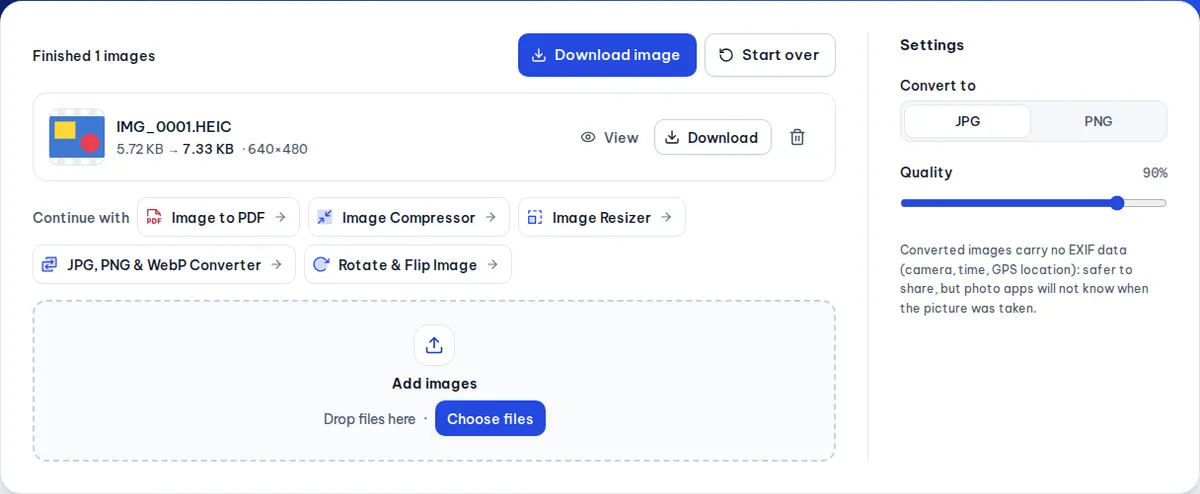
- Open HEIC to JPG in Chrome, Edge, Firefox or Safari.
- Drag your
.HEIC/.HEIFfiles into the box or click to choose them. You can pick several at once (up to 30). - Choose JPG for photos or PNG if you need lossless output (the file will be much larger), and set the quality.
- Preview the result, then download each photo or press the ZIP button to get them all.
iPhone photos are usually 4032 × 3024 px. If you only need to send them by email or upload them to a form, run the JPGs through the image compressor to make them smaller still.
Ways to convert HEIC, compared
| Method | Pros | Cons |
|---|---|---|
| Browser tool | Nothing to install, photos stay on your device, many photos at once | Large photos take longer on slow computers |
| HEIF extension on Windows | Opens HEIC directly in the Photos app | Not available on every PC, and you still have to export to get a JPG |
| Change the iPhone camera setting | All new photos are JPG | Bigger files, and existing photos stay HEIC |
| Website that uploads your photos | Easy | Your private photos end up on someone else's server |
Make the iPhone shoot and send JPG
Shoot JPG directly
Go to Settings → Camera → Formats and choose Most Compatible. New photos are saved as JPG from then on. Photos you already took stay HEIC.
Convert automatically when copying to a computer
Go to Settings → Photos and, under "Transfer to Mac or PC", choose Automatic. When you copy photos over a cable, the iPhone converts them to a compatible format. This does not apply to downloads from iCloud.
Things to know before converting
- Location data. iPhone photos usually contain GPS coordinates in their EXIF data. The JPGs this tool creates carry no EXIF (camera, time, GPS), which is safer when you share them. To see what the original contains, use the EXIF viewer.
- Live Photos. Only the still image becomes a JPG; the short video clip is not kept.
- HDR colour. Some HDR photos look slightly different as a standard JPG. That is a limit of the JPG format, not a conversion error.
- File names. The JPG keeps the original name with a new extension, so it is easy to match with the photo on your phone.
Getting photos from an iPhone onto a Windows PC
Before converting, you need the photos on your computer. Three common ways:
- USB cable: plug the iPhone in, unlock it and tap "Trust". The photos are in the device's DCIM folder; copy the
.HEICfiles to a folder on your PC. - iCloud Photos: open iCloud in a browser, select photos and download them. Some download options give you a compatible JPG, others keep the HEIC original.
- Chat app or email to yourself: handy for a few photos, but many apps recompress images and lower the quality.
Once the .HEIC files are on your computer, drop the whole folder into the tool to convert them in one go.
When to keep HEIC instead
You do not always need to convert. Keep HEIC when:
- you only store photos on an iPhone, iPad or Mac, where HEIC opens normally and saves space;
- the photo is HDR or a portrait with depth data that you want to keep for later editing;
- you need the EXIF information (date taken, location) for a family album.
For sending, printing, applications and the web, JPG is still the safest choice. If a form wants a single PDF of several photos, convert to JPG first and then combine them with Image to PDF.
Frequently asked questions
Does converting HEIC to JPG reduce quality?
Slightly, because JPG is a lossy format, but at a high quality setting the difference is practically invisible. If you need an exact copy, choose PNG (the file will be much larger).
Do my photos get uploaded?
No. The tool decodes the photos inside your browser; nothing is sent to the website's server.
How many photos can I convert at once?
Up to 30 photos per batch, each up to 25 MB. For more, convert them in several rounds.
Can Android phones open HEIC?
Most recent Android phones can display HEIC, but the apps and websites you send them to may not accept it. Converting to JPG is still the safe option.
Does the JPG keep the date the photo was taken?
No. The resulting JPG has no EXIF data such as date, location or camera model; this is deliberate so shared photos do not reveal private details. Keep the original HEIC if you need the date for sorting an album.
Free tools used in this article
- HEIC to JPG →Convert iPhone HEIC and HEIF photos to JPG or PNG that open everywhere.
- Image Compressor →Shrink JPG, PNG and WebP files while keeping them sharp.
- JPG, PNG & WebP Converter →Convert images between JPG, PNG and WebP in bulk.
- Image to PDF →Turn JPG, PNG and WebP images into one PDF with your choice of page size and margins.
#heic to jpg#iphone photos#image converter#windows