

Contents
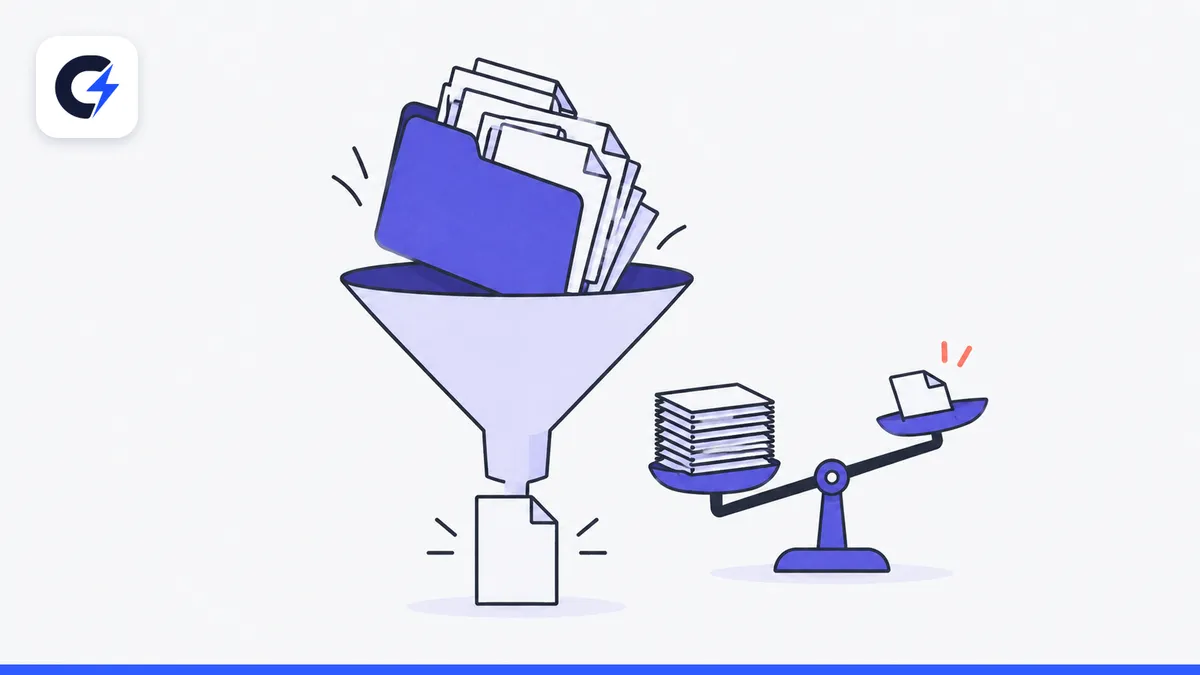
To get a PDF under 1 MB, open the PDF compressor, choose the file, keep the Keep text method at the default 70% level and press Compress PDF. Most of a PDF's weight is images, so files with photos or scanned pages usually shrink several times while the text stays sharp. If the result is still too big, switch to the Strong method, lower the level or remove pages you do not need to send.
Key takeaways
- A PDF's size comes mostly from images: photos, scanned pages, product shots.
- Keep text recompresses the images inside the file; text stays selectable and searchable.
- Strong turns every page into a JPEG image. It suits scans, but text can no longer be selected.
- Text-only PDFs exported from Word are usually lean already, so compressing them gains little.
- If a portal limits the size of each file, split the PDF into several smaller parts.
- Files are processed in your browser and never uploaded, so it is safe for personal documents.
Why is your PDF so big?
A PDF holds three kinds of content: text, vector graphics (lines, tables) and images. Text and vectors are stored as descriptions and weigh very little; a page of plain text is often just a few dozen kilobytes. Images are different: a high-resolution colour scan can weigh several megabytes per page.
The usual reasons a PDF balloons:
- Scanning in colour at high resolution. A 300 dpi colour image is far heavier than a 150 dpi greyscale one, and on screen you can barely tell the difference.
- Dropping phone photos into Word and exporting to PDF. A 12-megapixel photo keeps its full size even if it only appears as a small thumbnail on the page.
- Merging many separately scanned files. Every page is a large image and the total adds up quickly.
Step by step: under 1 MB
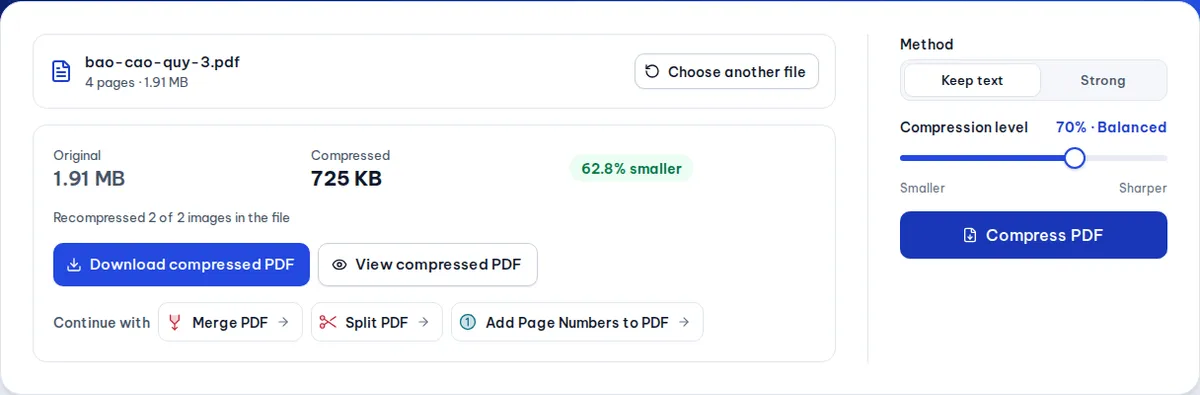
- Open Compress PDF and drop the file into the box, or click to choose it.
- Keep the Keep text method if the document has text you need to select or search.
- Move the Compression level slider: 70% balances size and sharpness; drag towards "Smaller" if you need an even smaller file.
- Press Compress PDF, compare the original and compressed sizes, and use View compressed PDF to check that text, stamps and signatures are still readable.
- Press Download compressed PDF. The new file gets a
-compressedsuffix so it does not overwrite the original.
In a real test, a 4-page report with photos went from 1.91 MB to 725 KB (62.8% smaller) at the default setting, and the text stayed selectable.
When to use the Strong method
Strong redraws each page as a JPEG image and builds a new PDF from them. It works best for:
- scans of paper documents (ID cards, certificates, signed contracts) that are images anyway, with no selectable text;
- files with complex graphics layers where recompressing the embedded images saves little.
Avoid it for documents that people need to copy text from, search or fill in, because after compression everything on the page is only a picture.
| Situation | Best choice | Notes |
|---|---|---|
| Report or CV exported from Word with photos | Keep text, 70% | Text stays sharp and selectable |
| Colour scan of paperwork | Strong | Much smaller, text becomes an image |
| Text-only file, no images | No need to compress | Gains are negligible |
| Very long document | Split, then compress each part | Good for per-file portal limits |
| Photos not yet in a PDF | Compress photos first, then combine | You control the quality of each page |
Still above 1 MB? Try these
Remove pages you do not need
Many applications only want the pages with the key information. Use Split PDF to keep just those pages; every scanned page you remove takes a big chunk of the size with it.
Compress images before building the PDF
If you have photos of each page, compress them to about 1,600–2,000 px wide first, then combine them with Image to PDF. That gives you more control over each page than compressing the finished PDF.
Rescan with sensible settings
For black-text documents, choose black and white or greyscale at about 150–200 dpi. A light original compresses into an even lighter file.
Split into several files
If the portal accepts several uploads of up to 1 MB each, divide the document into two or three logical parts, for example the application form and the supporting papers.
Avoid having your application rejected
- Check stamps, signatures and numbers after compressing. Very aggressive settings can blur thin lines.
- Use a clear file name without special characters if the portal asks for it, for example
application-nguyen-van-a.pdf. - Do not password-protect the PDF unless you are asked to; many systems cannot open protected files. The compressor cannot process a password-protected PDF either.
- Keep the original. Send the compressed copy online and keep the full-quality file for printing and archiving.
Compressing on your phone
Sometimes you have to submit straight from your phone, for instance after photographing documents with the camera:
- Scan each page with the built-in document scanner (Notes on iPhone, Google Drive on Android) so pages are straightened on a white background.
- Save the result as a PDF in your phone's Files app.
- Open the compressor in your browser, choose the saved file and compress it exactly as on a computer.
- Use View compressed PDF and zoom in on signatures and stamps before uploading.
Phone photos are large (3–5 MB per page), so this is where compression makes the biggest difference. If the portal only accepts JPG images instead of a PDF, use PDF to image to export each page.
Frequently asked questions
Does compressing a PDF lose text?
Not with Keep text. Only the embedded images are recompressed; text, fonts and lines are untouched. Only the Strong method turns pages into images.
Why did my file barely shrink?
Usually because it is mostly text or its images were already well compressed. The tool tells you when the compressed copy is not smaller and lets you download the original instead.
Is it safe for personal documents?
Yes. The file is processed in your own browser with JavaScript and is never sent to the website's server.
Can I compress a PDF on a phone?
Yes. Open the tool in your phone's browser and choose the file from Files or your file manager; the steps are the same as on a computer. Large files simply take longer on slower phones.
Is there a page or size limit?
One file at a time, up to 200 MB. Files with many large scanned pages need more browser memory; for a document with hundreds of scanned pages, split it into parts with Split PDF and compress each part.
Free tools used in this article
- Compress PDF →Shrink PDF files by recompressing the images inside while keeping text selectable, with a strong mode for scans.
- Split PDF →Split a PDF by page ranges, into single pages, every N pages, or extract chosen pages.
- Image to PDF →Turn JPG, PNG and WebP images into one PDF with your choice of page size and margins.
- Image Compressor →Shrink JPG, PNG and WebP files while keeping them sharp.
#compress pdf#reduce pdf size#online application#scanned documents